
Open Reminders in the menu. Masjid Admins, Marketing members and owners of the organisation can change these settings. Editors can see them but not change them.
Nothing is sent until you switch it on. Every ṣalāh and both ways of sending start switched off, and no event has a reminder until you add one. Once switched on, reminders are sent by themselves, with no draft to approve.
Choose which ṣalāh to watch #
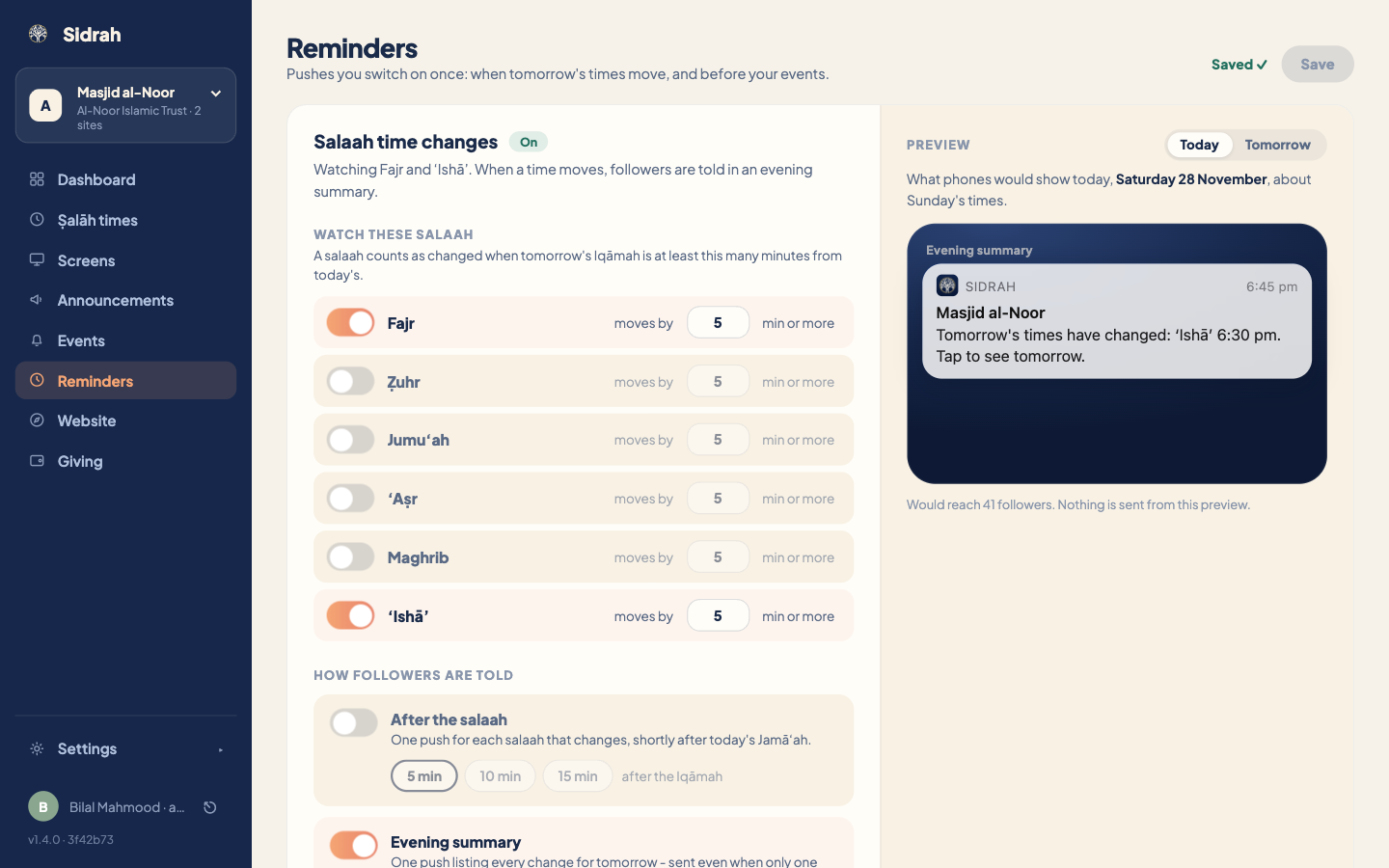
In the Salaah time changes card, under Watch these salaah, switch on each ṣalāh you want followers told about. Beside each one, set moves by a number of min or more. It starts at 5.
A ṣalāh counts as changed when tomorrow's iqāmah is at least that many minutes from today's. Sidrah reads both from your timetable.
Jumu‘ah has its own row. It is compared with last Friday's Jumu‘ah, and followers are told on Thursday. If you have more than one Jumu‘ah jamā‘ah, each is compared with the same one the week before. Ẓuhr is never compared with Jumu‘ah.
Choose how followers are told #
Under How followers are told, switch on one or both:
- After the salaah - one push for each ṣalāh that changes, sent 5, 10 or 15 minutes after today's iqāmah of that ṣalāh. Press the number of minutes you want.
- Evening summary - one push listing every change for tomorrow, sent a number of minutes after the ‘Ishā’ iqāmah. It starts at 30.
With both on, followers are told twice. You need at least one ṣalāh watched and one way of sending switched on. Otherwise the card shows Not sending.
Check the preview and save #
The Preview on the right shows the notifications as they would look on a phone, with the time each would arrive. Press Today or Tomorrow to see either day. It updates as you change the settings, before you save. Nothing is sent from the preview. The line under it says how many followers it would reach.
Press Save at the top right. Saved ✓ appears, and the card shows On.
Add reminders to an event #
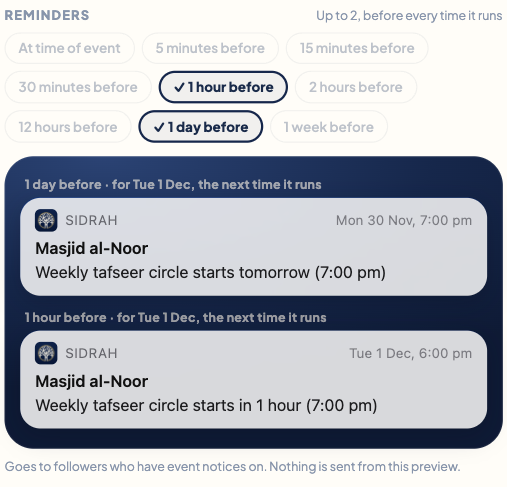
Event reminders are set on the event itself. Open Events, then press + New event or open an existing event. Under Reminders, choose up to two of: At time of event, 5 minutes before, 15 minutes before, 30 minutes before, 1 hour before, 2 hours before, 12 hours before, 1 day before or 1 week before.
A preview shows the push for the next time the event runs. Press Publish event or Update event. For a weekly or monthly event, the reminders are sent before every time it runs. See run events.
Check it worked #
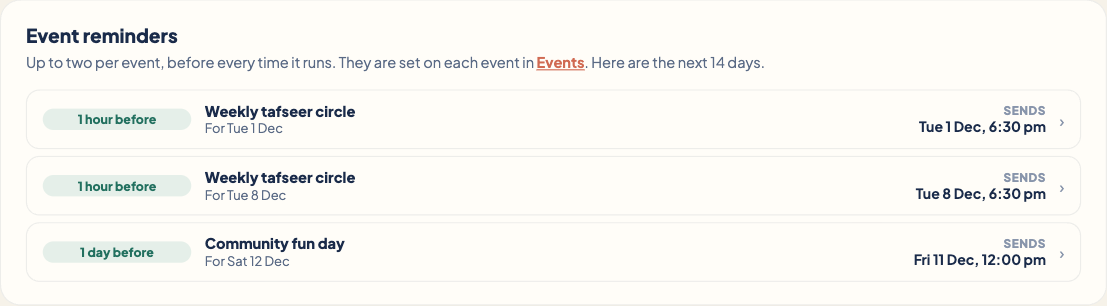
On the Reminders page, the Event reminders card lists every event reminder due in the next 14 days, with when it Sends. Press a row to open its event. For time changes, the line under Salaah time changes says which ṣalāh are watched and how followers are told.
Good to know #
- Reminders go to people who follow your masjid in the Sidrah app. Anyone who has switched off Time changes or Events for your masjid in the app, under More > Notifications, does not get that kind.
- Reminders compare tomorrow with today, every day. So a change already in your timetable is announced even when nobody edits anything.
- When you edit a time yourself, Sidrah also drafts a time change announcement. That one waits for you to publish it. See edit times day by day.