
Anyone with the Marketing or Admin role can post announcements. Nothing is public until you publish, so it is safe to open the composer and look around first.
Open Announcements #
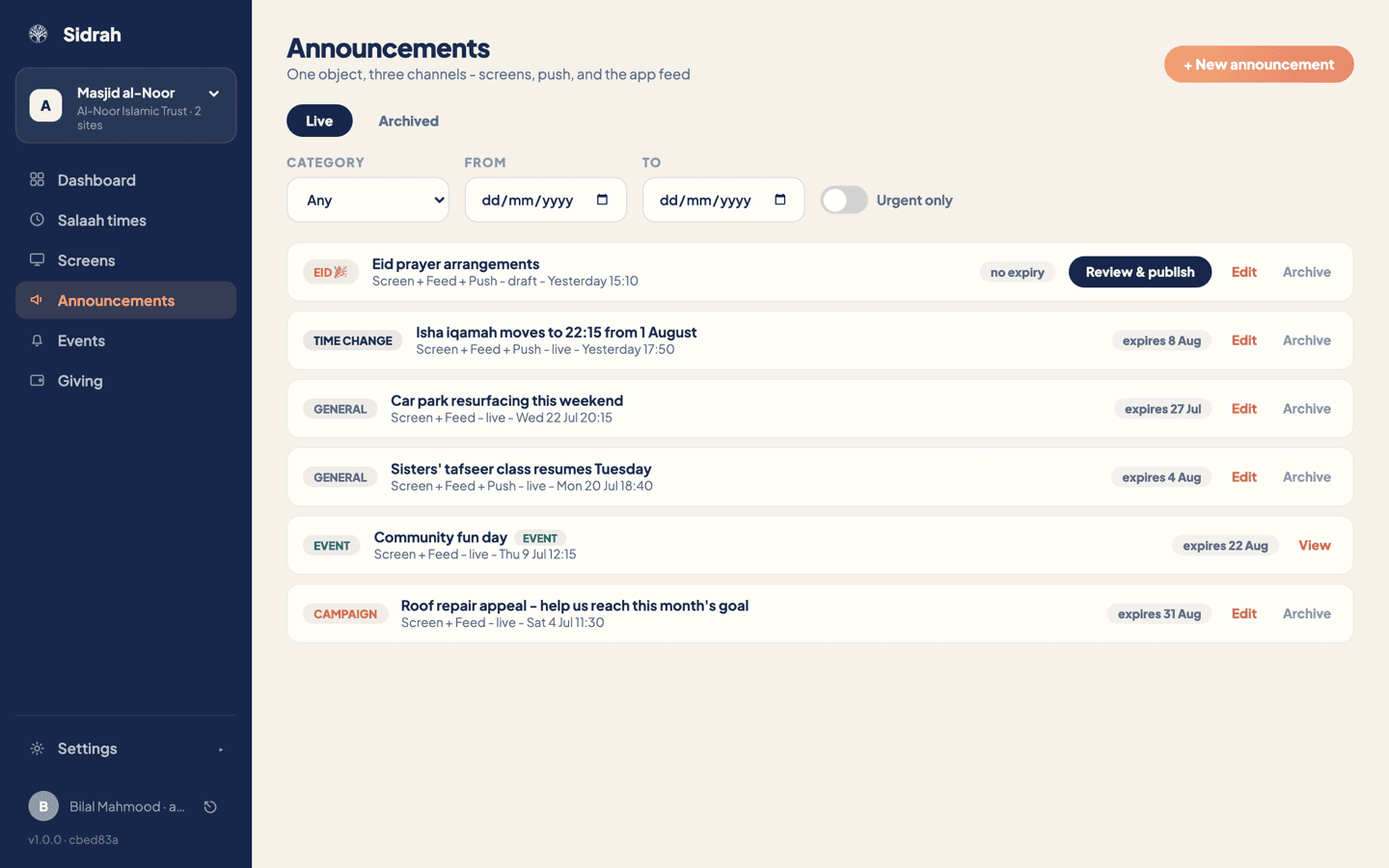
Choose Announcements in the left-hand menu. The Live tab lists everything reaching your community now; Archived holds what you have retired. Each row shows its category, its channels, whether it is a draft or live, and when it drops off, and the filters above find an old notice quickly. Press + New announcement to begin.
Write it and choose a category #
Give it a Title and a Message; both are needed, because a notice with no message looks broken in the app. Then pick a Category, which is what worshippers use to decide what they hear about:
- General - everyday news.
- Event - a talk, a class, something at a set time.
- Time change - a salaah time moving. Sidrah drafts these for you (step 6).
- Campaign - appeals and fundraising.
- Eid - Eid arrangements, so they stand apart.
Pick the channels and an expiry #
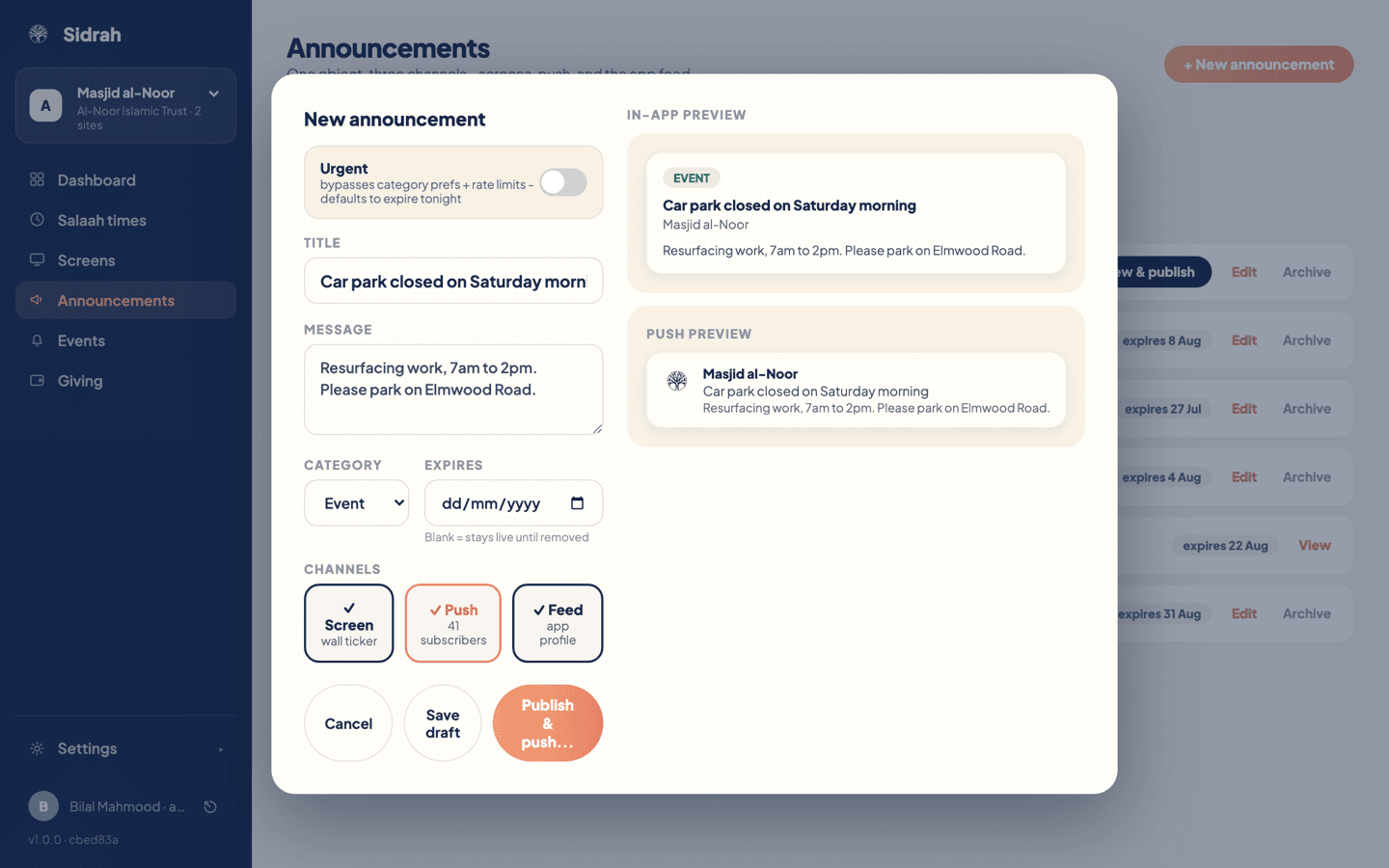
Under Channels, tap a tile to switch it on or off. A tick means it is on.
- Screen - the wall ticker on your displays. It shows one message at a time and cycles through them, so the more you keep live, the longer each waits its turn.
- Push - a notification on the phones of your subscribers. The tile carries the live count.
- Feed - your masjid's profile in the app, where anyone can scroll back.
Set Expires if the notice has a natural end; blank means it stays live until you archive it.
Add Push only when the news genuinely needs to interrupt someone's evening. Push is a trust battery: spend it too often and people switch it off.
Save a draft, or publish and confirm #
Save draft keeps the notice in the list for a colleague to check the wording; its row then carries a Review & publish button. Publish makes it live at once, and with Push chosen the button reads Publish & push... - the dots warn you that one more screen is coming.
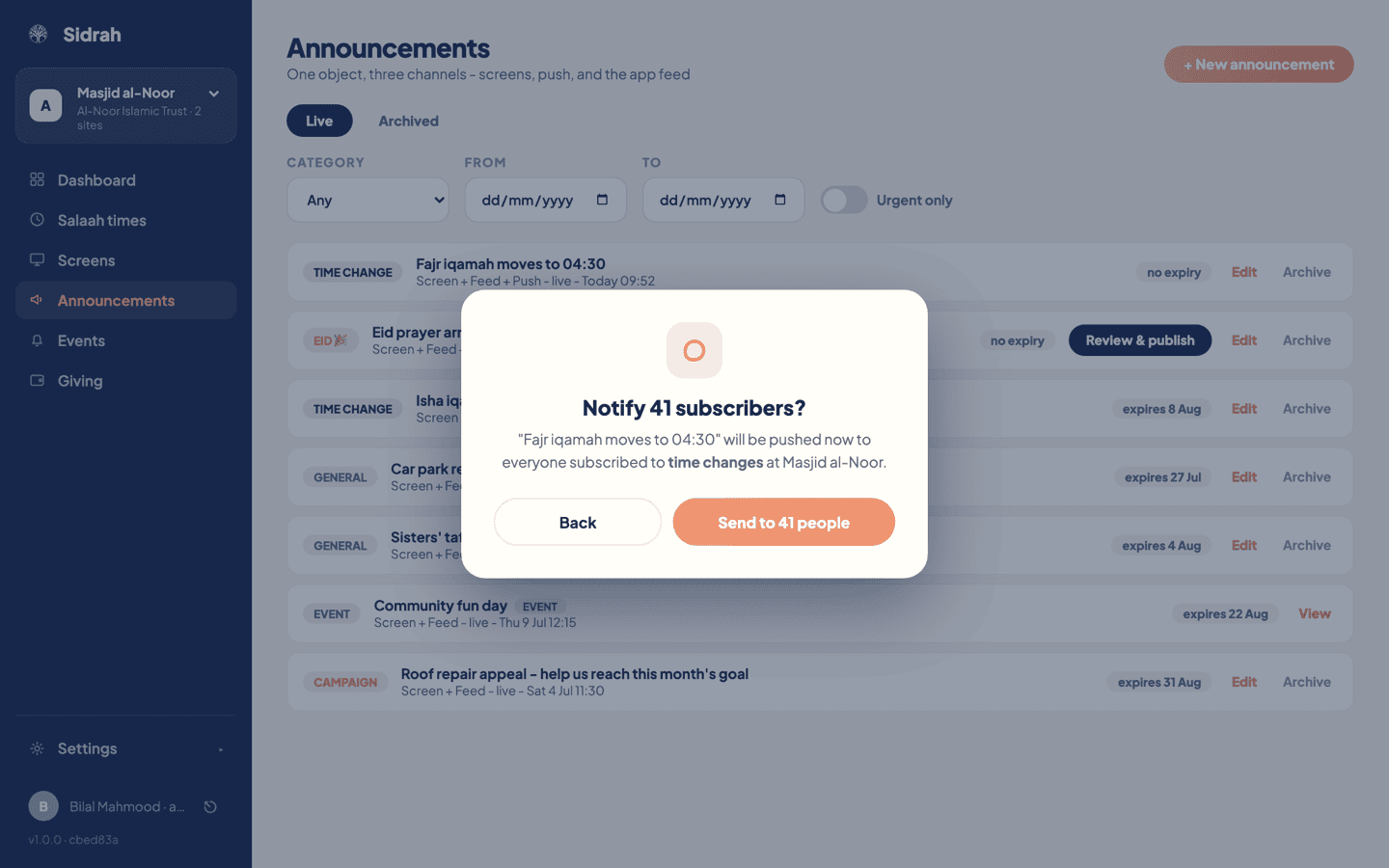
That screen is the confirmation: Notify 41 subscribers?, or whatever your number is. It names the notice, the group who subscribed to that category and how many screens carry it, and says quietly if you have pushed several times already this week. The number matters: it travels with the request and is checked at our end, so a send can never quietly reach a different crowd from the one you agreed to. Press Send to 41 people, or Back.
Urgent, and the responsibility it carries #
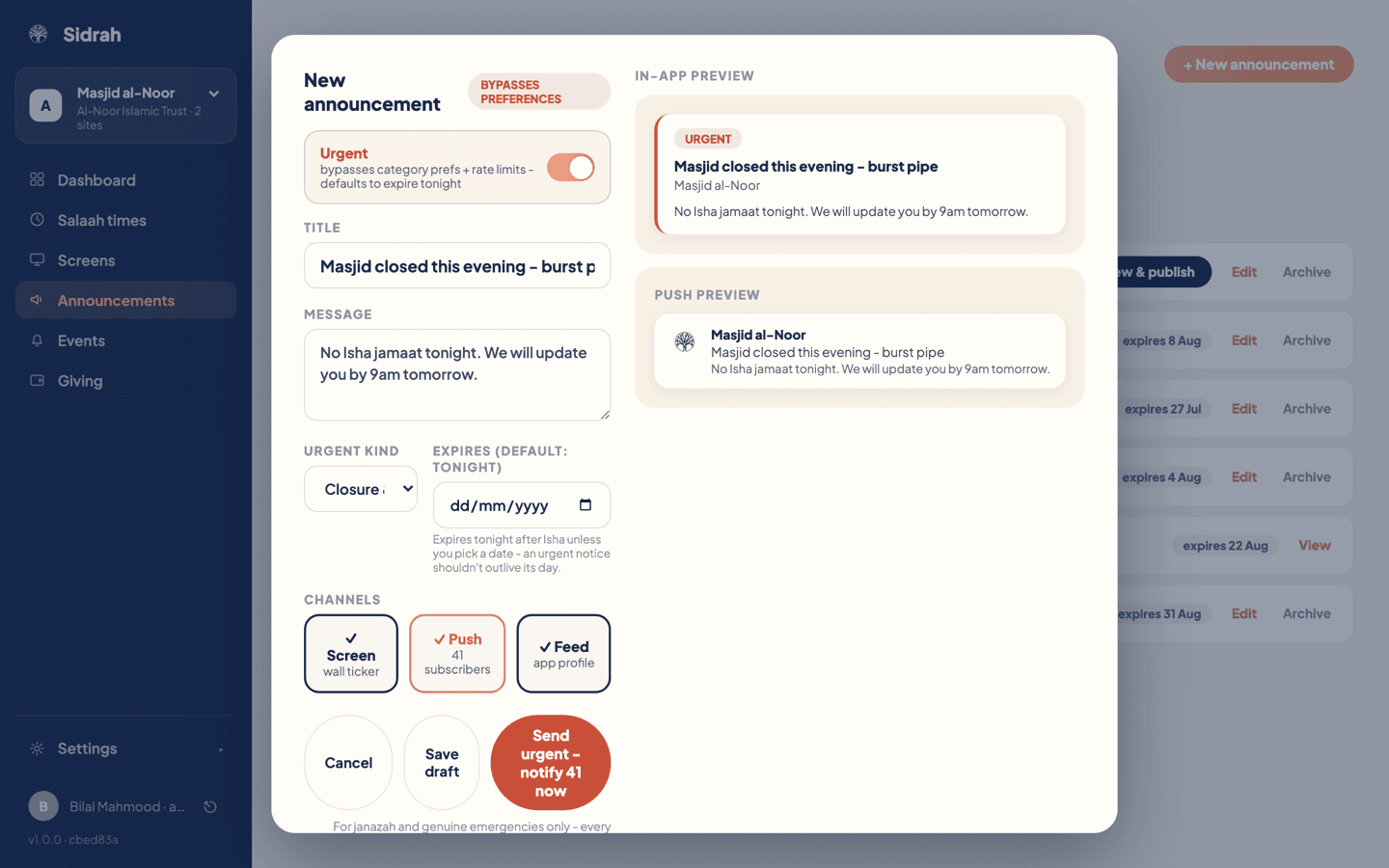
Switch Urgent on and the form changes: a BYPASSES PREFERENCES chip appears, Category becomes Urgent kind, and the expiry defaults to tonight, because an urgent notice should not outlive its day. The kinds are Janazah, Closure & safety for a shut masjid or a salaah that is not going ahead, and Other urgent.
Urgent reaches everyone. It sets aside the categories a person chose to mute and the ordinary rate limits - exactly what you want for a janazah, and exactly what you do not want for a reminder about the bins. Every urgent send is logged for the committee. Keep it for janazah and real emergencies and your community will trust it when it matters.
Choosing Janazah reshapes the form with the respect the moment deserves. Title becomes Name of the deceased, and a Janazah salaah field appears for the time and place. Whatever you type there sits at the top of the message as a "Janazah salaah:" line, so it is read first.
Archive it when it is done #
Press Archive on the row and confirm. That takes the notice off the wall and out of the feed but keeps it on the Archived tab, so your masjid keeps a record of what it told people and when. Unarchive brings it back. There is no delete button, and that is deliberate. Two kinds of row behave differently:
- Auto-drafted time changes - save a change on the Salaah times page and Sidrah writes the notice and leaves it here as a draft. Read it, reword it, publish it. Nothing goes out on your behalf.
- Event notices - a row badged EVENT came from Announce this event on the Events page. It is read-only here; View points you at the event, the single source of truth.
To check it worked, open your masjid in the app: the notice should be top of the feed within seconds, and your screens pick it up on the ticker's next cycle.