
Have the date, the times, the room and a sentence about who it is for to hand before you begin. Anyone with the Marketing or Admin role can do this.
Open Events and start a new one #
Choose Events in the left-hand menu. Live shows everything current; Archived keeps what you have retired. Each row gives the next date, the time, the venue and how it repeats, with a chip saying one-off, no end, or the date repeats stop. A DRAFT badge means only your team can see it.
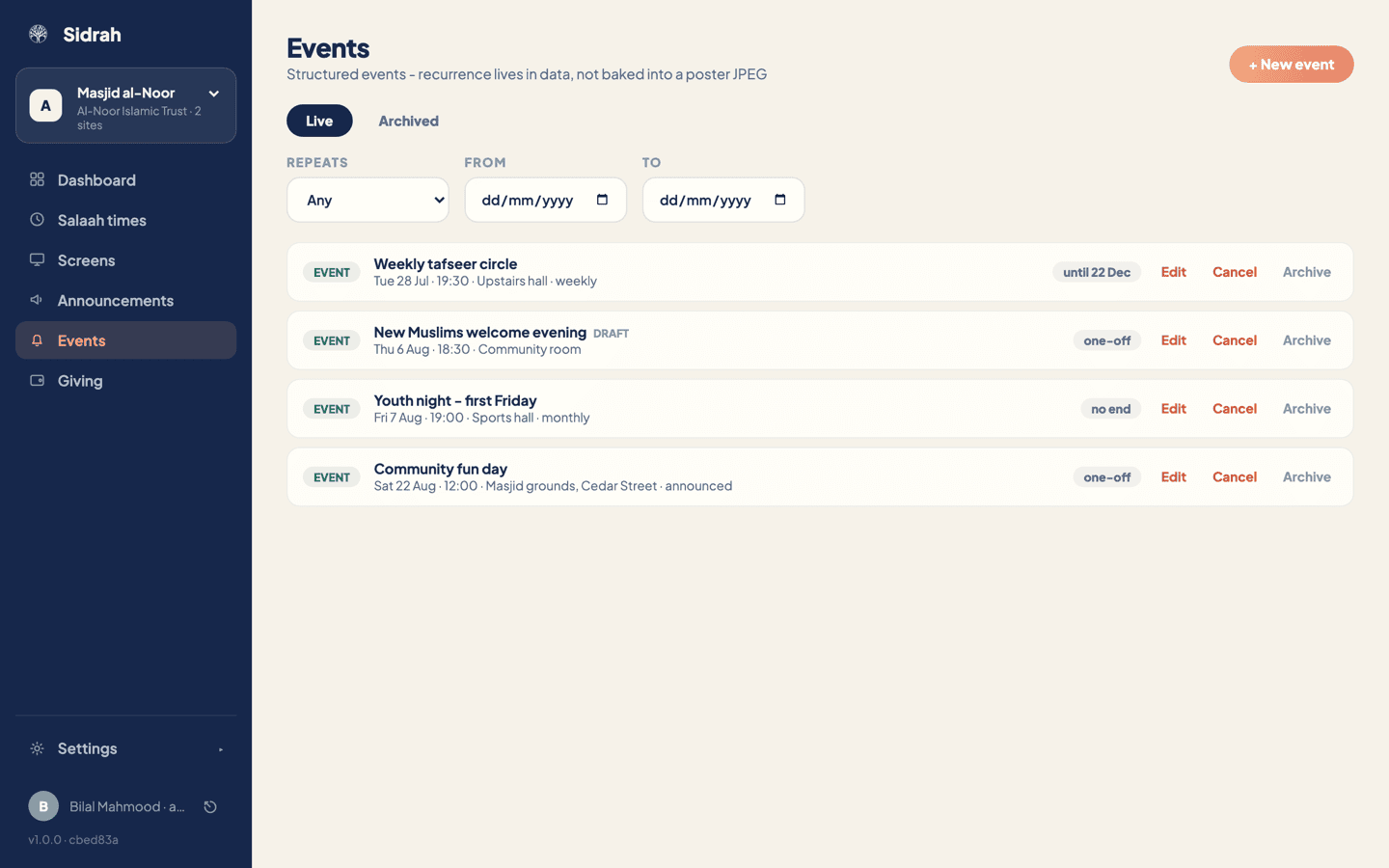
Press + New event.
Fill in the what, when and where #
Work down the left-hand column of the modal:
- Title - what people call it in conversation; this is the line they see in the app.
- When - the date, then the start and finish times. These read on your masjid's own clock, not the clock of whichever laptop you are using, so a volunteer helping from abroad cannot shift the whole term by accident.
- Venue - the room, such as the upstairs hall. Leave it blank and the app shows your masjid's name.
- Description - who it is for, what happens, anything to bring. Two or three plain sentences beat a paragraph of flourish.
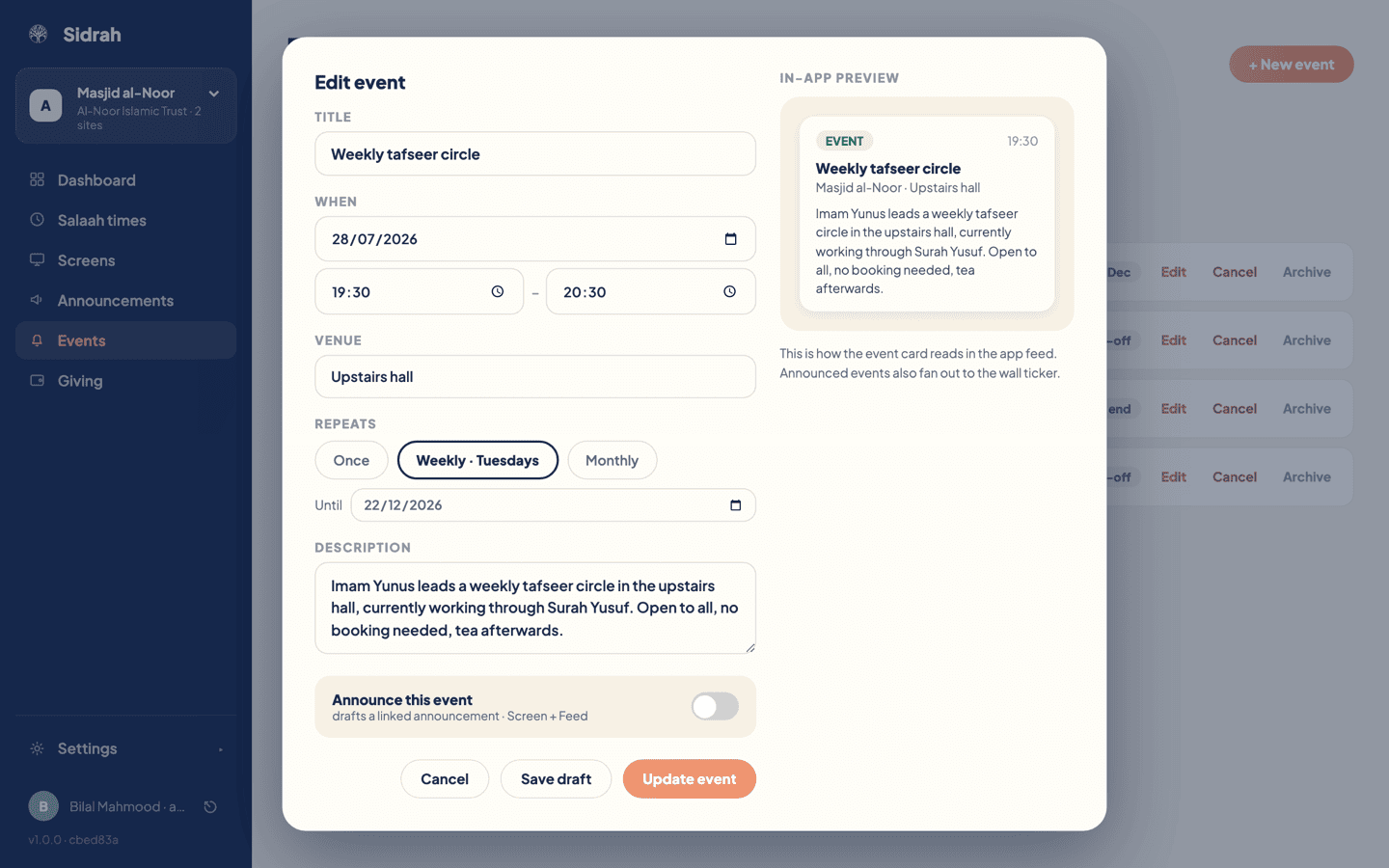
The In-app preview updates as you type, so a title that runs too long shows itself before anyone else sees it.
Set how it repeats #
Under Repeats, pick one of three:
- Once - a single date: a fundraising dinner, a visiting speaker.
- Weekly - the button names the weekday from the date you chose, so a Tuesday gives Weekly · Tuesdays.
- Monthly - opens a Monthly on panel with two rules.
Both monthly rules earn their keep, because masaajid use both:
- On day N - the same date each month, taken from the date you picked. Good for anything tied to a number, such as a first-of-the-month collection. Above day 28 it falls back to the last day in shorter months.
- On the first, second, third, fourth or last weekday - the pattern most regular gatherings follow. A youth night on the first Friday stays on the first Friday whatever the date.
For anything that repeats, an Until date appears. Set it to the end of term and the event tidies itself away; leave it blank and it keeps going, which the list shows as no end.
Set the date first, then choose how it repeats. Both the weekly weekday and the monthly rules are read off the date in the When field, so in that order the buttons already say what you meant.
Announce it, then publish #
At the bottom sits Announce this event. Switch it on and Sidrah drafts a linked announcement on the Screen and Feed channels, so the event reaches the wall ticker as well as the app. There is no push from this toggle: if it deserves a notification, send one deliberately from the Announcements page.
That linked notice is managed by the event and nowhere else: on the Announcements page it is read-only, badged EVENT, and points you back here, so the two can never say different things.
Then choose:
- Save draft - keeps it in the list for a colleague to check; nobody outside your team sees it.
- Publish event - puts it in the app straight away. Come back later and the same button reads Update event.
Publishing an event does not interrupt anybody. It appears in your masjid's feed and, if announced, on your screens; phones stay quiet unless you send a push yourself.
Cancelling one, and archiving one #
These two sit side by side on the row and mean different things.
Cancel is for the evening the speaker cannot make it. The event is marked CANCELLED and leaves the upcoming list, its promotional announcement ends so it stops advertising something that is not happening, and Sidrah opens the announcements composer with a cancellation notice already written for you. It arrives as an ordinary notice, not an urgent one; you decide whether to reword it, push it, or save it as a draft. Un-cancel puts the event back.
Archive is for the class that has run its course. It hides the event from displays and moves it to the Archived tab; Unarchive brings it back. Any linked announcement ends with it and stays expired even if you unarchive later, so turn Announce this event off and on again to draft a fresh one. The form reminds you.
To check it worked, open your masjid in the app: a published event sits in the feed with its next date, and an announced one reaches the ticker on your screens' next cycle.