
You need two things: the TV switched on and connected to the internet, and someone signed in to the Sidrah admin - either standing at the TV with a phone, or reading the code down the hall to a helper.
Add the screen and give it a name #
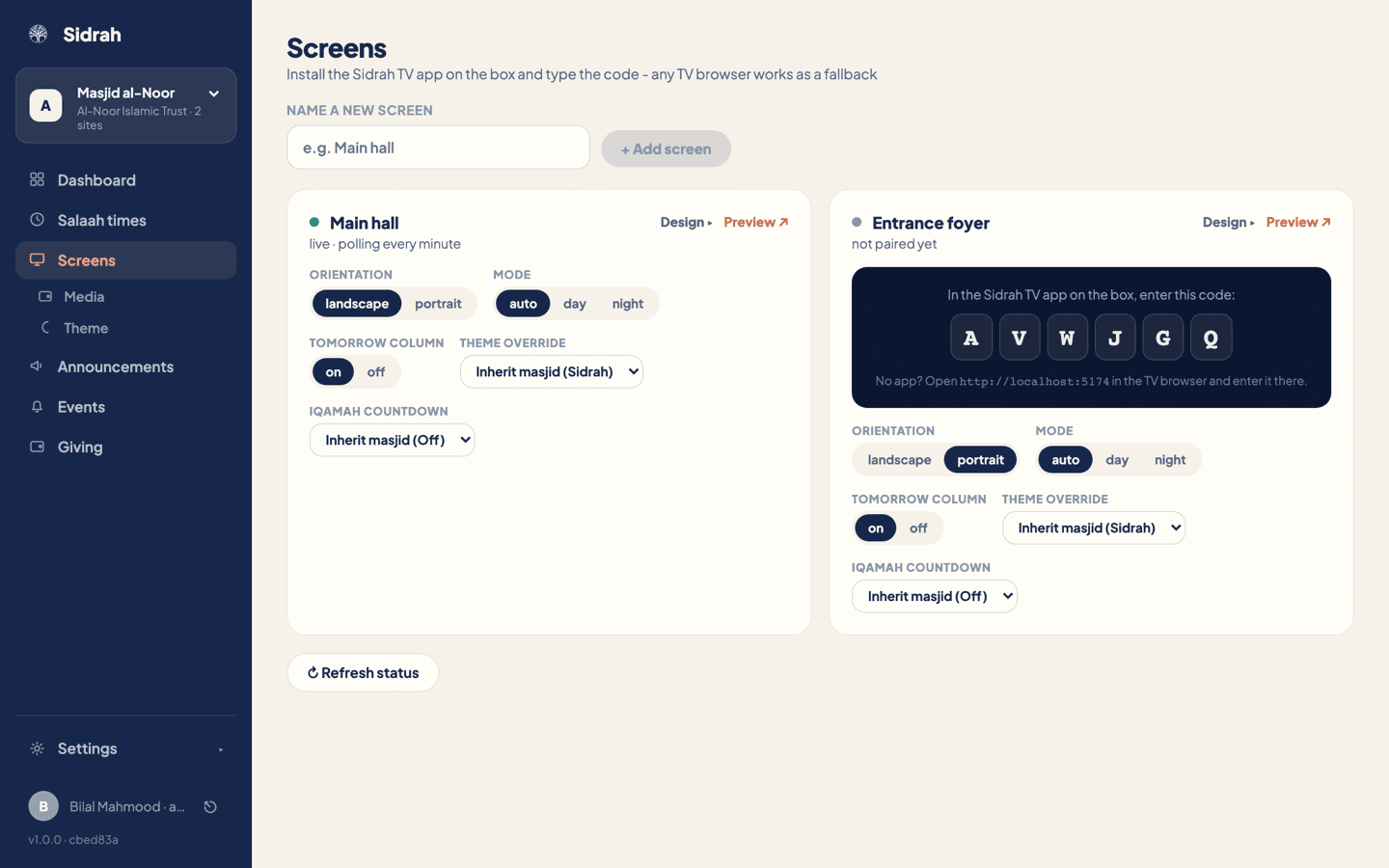
Open Screens in the left-hand menu. Type a name under Name a new screen and press + Add screen. Name it after the place it hangs - "Main hall", "Entrance foyer", "Sisters' section" - because that name is what you will be picking from every time you set a poster or a layout later.
A card appears straight away with a grey dot, the words not paired yet, and a six-character pairing code in a dark panel. That code belongs to that screen and no other.
Type the code on the TV #
How you get to the pairing box depends on what is driving the TV:
- An Android TV box or streaming stick - install the Sidrah TV app, open it, and the pairing box is the first thing it shows.
- Any other TV with a browser - open the web address printed at the bottom of the pairing panel on the screen's card. There is nothing to install and nothing to buy.
Either way you land on the same page. Type the six characters with the remote and choose Pair screen.
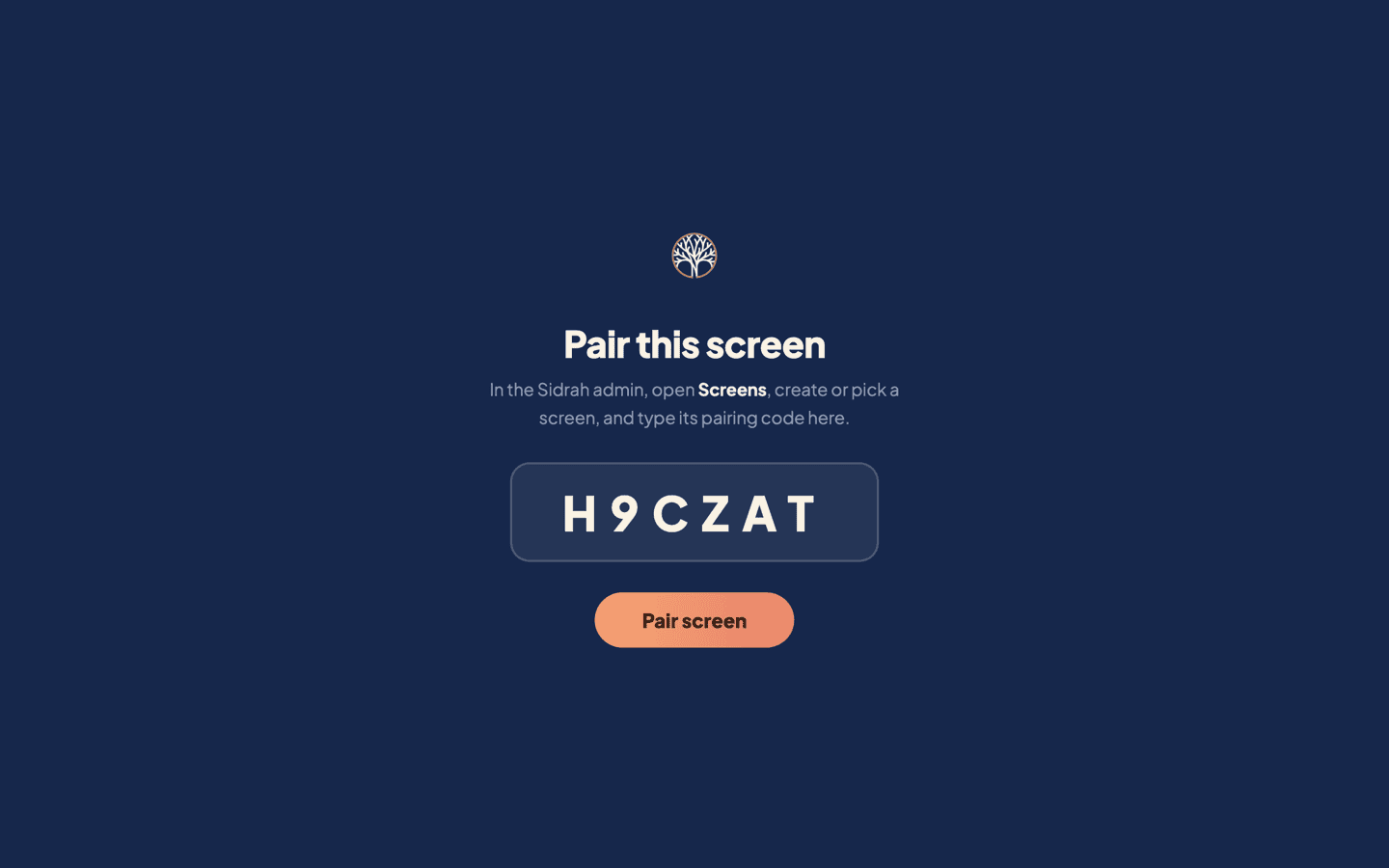
Use the code from that screen's own card. If you have two screens waiting, the codes are different, and typing the wrong one will pair the TV to the wrong name - harmless, but confusing when you come to design its layout.
Watch the card turn green #
Back in the admin, the card swaps its code for a status line. The little dot tells you the whole story:
- Grey, "not paired yet" - nobody has typed the code in yet.
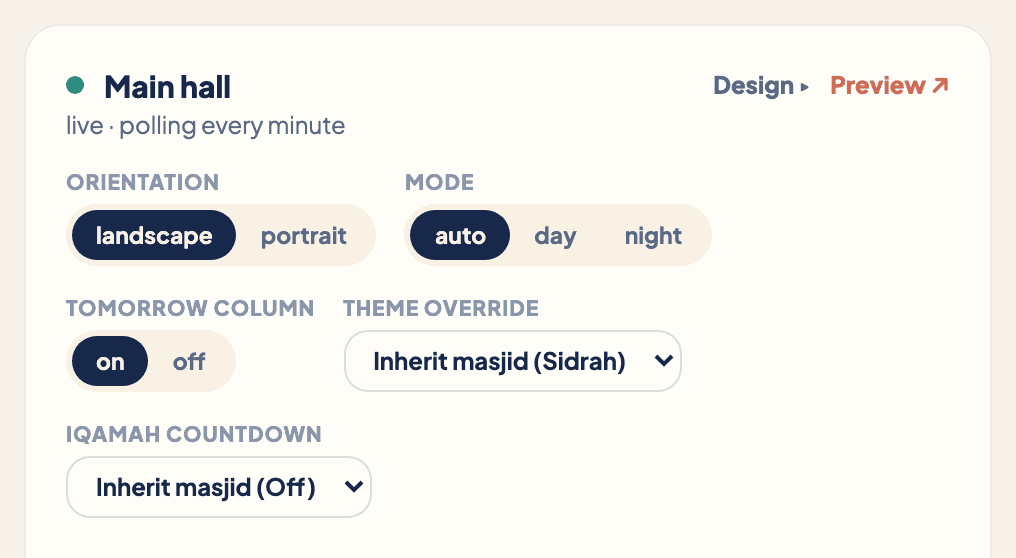
- Green, "live · polling every minute" - the screen is checking in and showing your times.
- Coral, "offline" - it has stopped checking in, with the date and time it was last heard from. A paired screen calls home every minute; if three minutes pass in silence Sidrah marks it offline. Nine times in ten that means the TV is off or the wi-fi has dropped.
Press Refresh status at the bottom of the page if you want to check again without waiting.
Set that screen up for the room it is in #
Every card carries its own settings, and each one saves the moment you click it - there is no Save button to hunt for.
- Orientation - landscape or portrait, to match how the TV is hung.
- Mode - auto, day or night. Auto follows the masjid's night setting; pin a foyer screen to day if it sits in bright daylight.
- Tomorrow column - adds tomorrow's times beside today's on the times table.
- Theme override - leave it on Inherit masjid unless this one screen needs different colours.
- Iqamah countdown - inherit the masjid default, or force Off, Tile or Full screen on this screen alone.
Check it without leaving your desk #
Choose Preview on the card. It opens exactly what that TV is showing, in a new browser tab, so you can see the change you just made without walking back to the hall.
Do the pairing before you fuss over the layout. Once the card is green, Design on the same card takes you to everything else - and every change you make lands on the TV within a minute.