
Themes are set for the whole masjid in one place: Screens ▸ Theme. Every display follows that default unless you have given one screen a theme of its own on its card.
Pick a day and night pair #
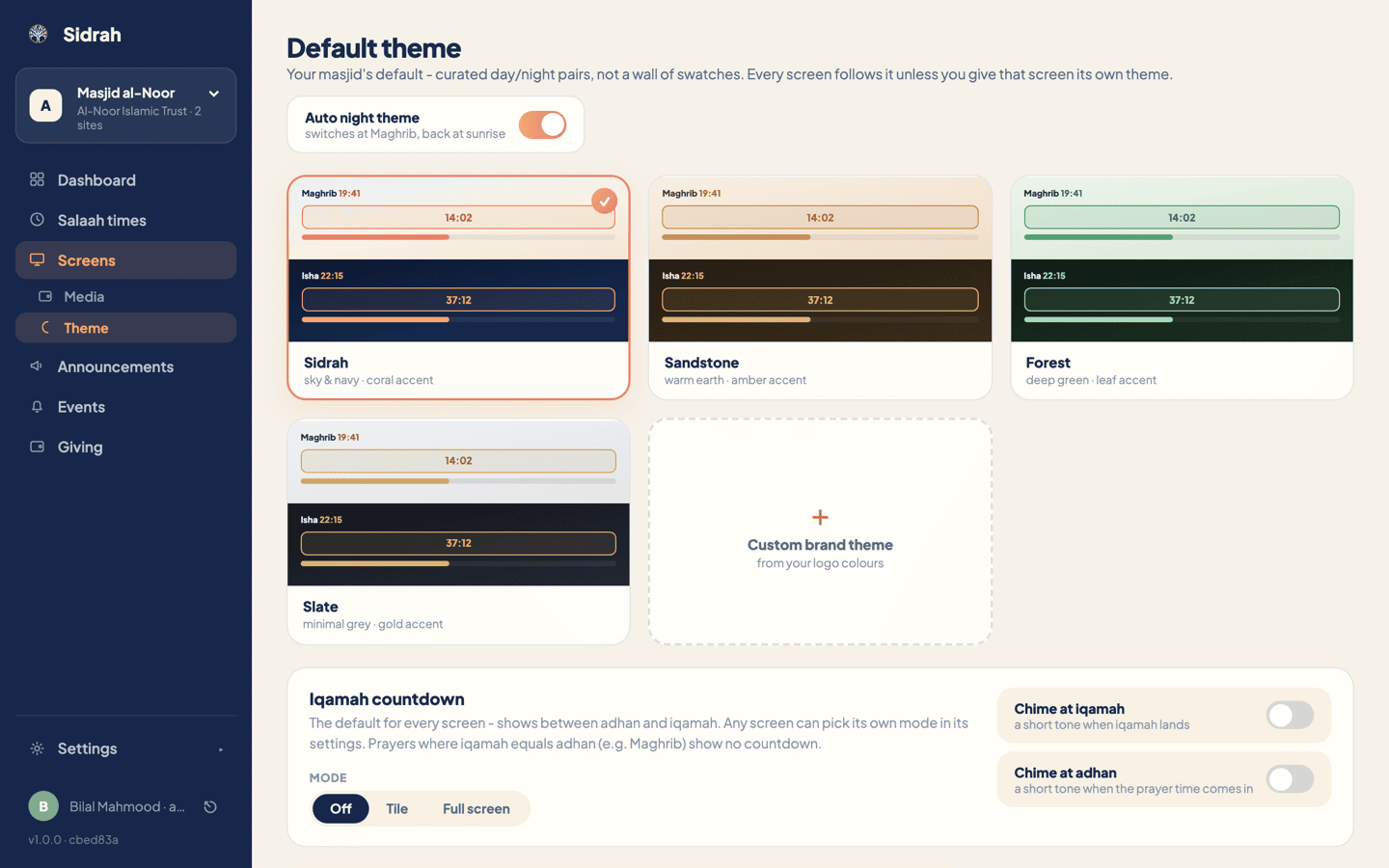
Open Screens, then Theme underneath it. You get four curated pairs rather than a wall of swatches, because each one has been tested together: Sidrah (sky and navy with a coral accent), Sandstone (warm earth, amber accent), Forest (deep green, leaf accent) and Slate (minimal grey, gold accent).
Each card shows both halves at once - the light day treatment on top, the dark night treatment beneath - so you can judge the pair, not just one mood. Click the one you want and it picks up a tick.
Let the screens change at Maghrib #
The Auto night theme toggle at the top right switches your displays to the dark half at Maghrib and back to the light half at sunrise. It is the setting most masaajid want: bright and legible through the day, easy on the eyes for Isha.
If one screen should not follow along - a foyer display in full daylight, say - leave auto night on for the masjid and set that screen's Mode to day on its card in Screens.
Decide how the iqamah countdown behaves #
Lower down the page, the Iqamah countdown panel sets the default for every screen. It shows in the gap between adhan and iqamah, and there are three modes:
- Off - no countdown at all.
- Tile - a countdown in its own tile, with the rest of the layout still visible.
- Full screen - the countdown takes the whole display, which is the one to choose if latecomers need to see it from the door.
Beside it, Chime at iqamah plays a short tone the moment iqamah lands, and Chime at adhan does the same as the prayer time comes in - it stays off unless you switch it on. These two soft chimes are the only sound a screen ever makes. Prayers where iqamah is the same as adhan - Maghrib, at most masaajid - show no countdown at all, so you do not need a special rule for them.
Any single screen can ignore this default. The Iqamah countdown dropdown on a screen's card offers Inherit masjid or its own mode, which is how you keep a full-screen countdown in the hall and nothing at all in the office.
Apply it, and see it #
Nothing is saved until you press Apply to all screens at the bottom of the page. That one button stores the theme, the auto night setting, the countdown mode and the chime together, and every screen that has not been given its own override follows within a minute. Preview on a screen next to it opens a live display in a new tab if you would rather look before you commit.
Build a theme from your own colours #
If your masjid has its own brand, choose the dashed Custom brand theme tile. You give the theme a name, pick a Base surface for night, and pick an Accent for highlights and the countdown. That is all you design: the day theme is derived automatically from the same hues, so you never have to make the same decision twice.
Look at the badge in the top right corner. While it reads PASSES CONTRAST AT DISPLAY SIZES you can save; if an accent sits too close to your base it changes to ACCENT TOO CLOSE TO BASE and the save button stops working. Swatches that could never pass are disabled before you can even click them.
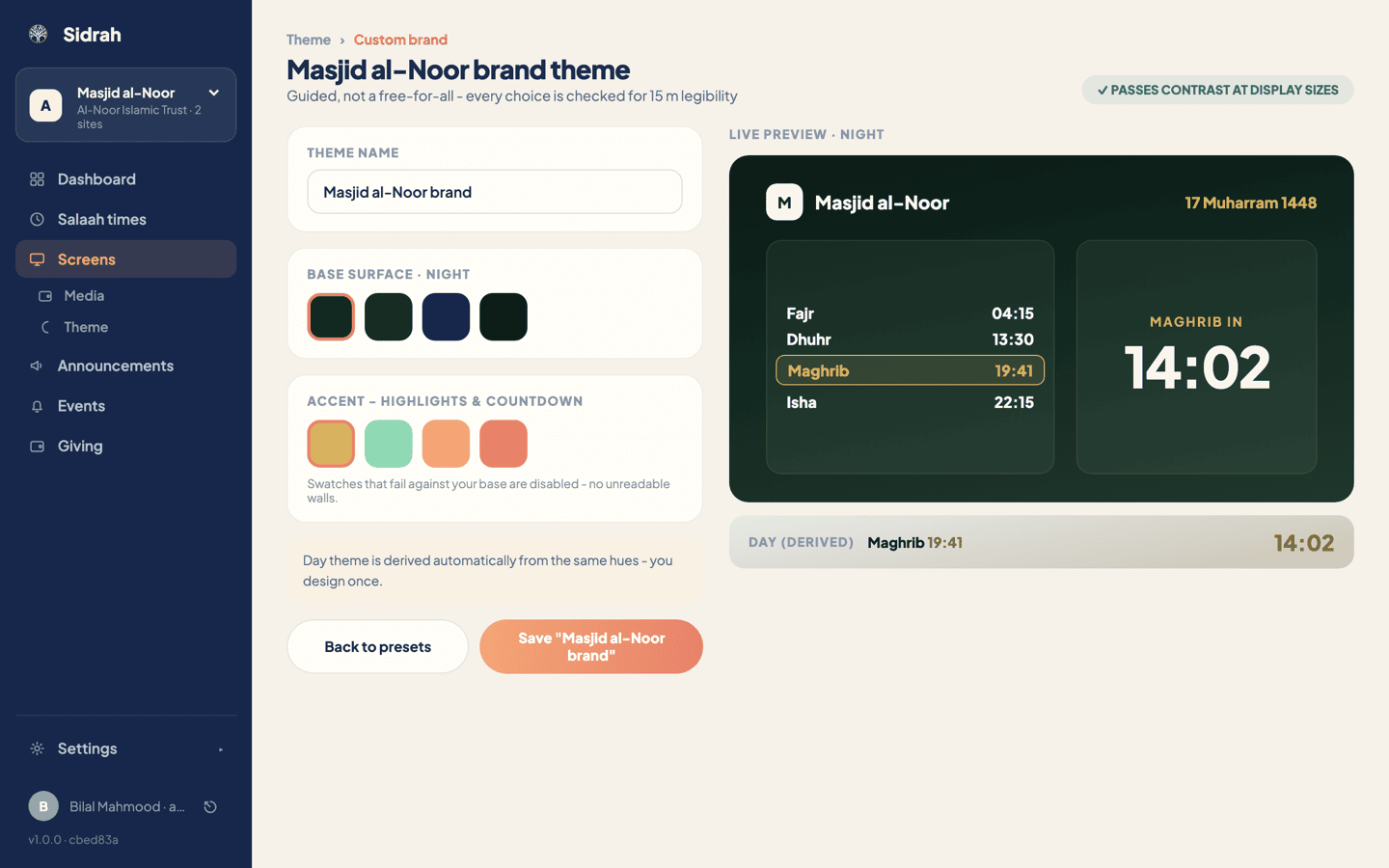
This is not the app being fussy. A screen on the qiblah wall is read from fifteen metres away, often on a cheap TV with the contrast set oddly, by someone who has just walked in from bright sunlight. A brand colour that looks smart on a letterhead can vanish completely up there - the contrast check is what stops that happening after the TV is already on the wall.
Press Save and the brand theme becomes your masjid's live theme. It also joins the list on the theme page and the Theme override dropdown on every screen card, so you can put it on one display and leave the rest on a stock pair.