
Posters are shared across the masjid and live under Screens ▸ Media. Every screen whose layout carries a poster carousel zone shows the same set.
Upload a poster #
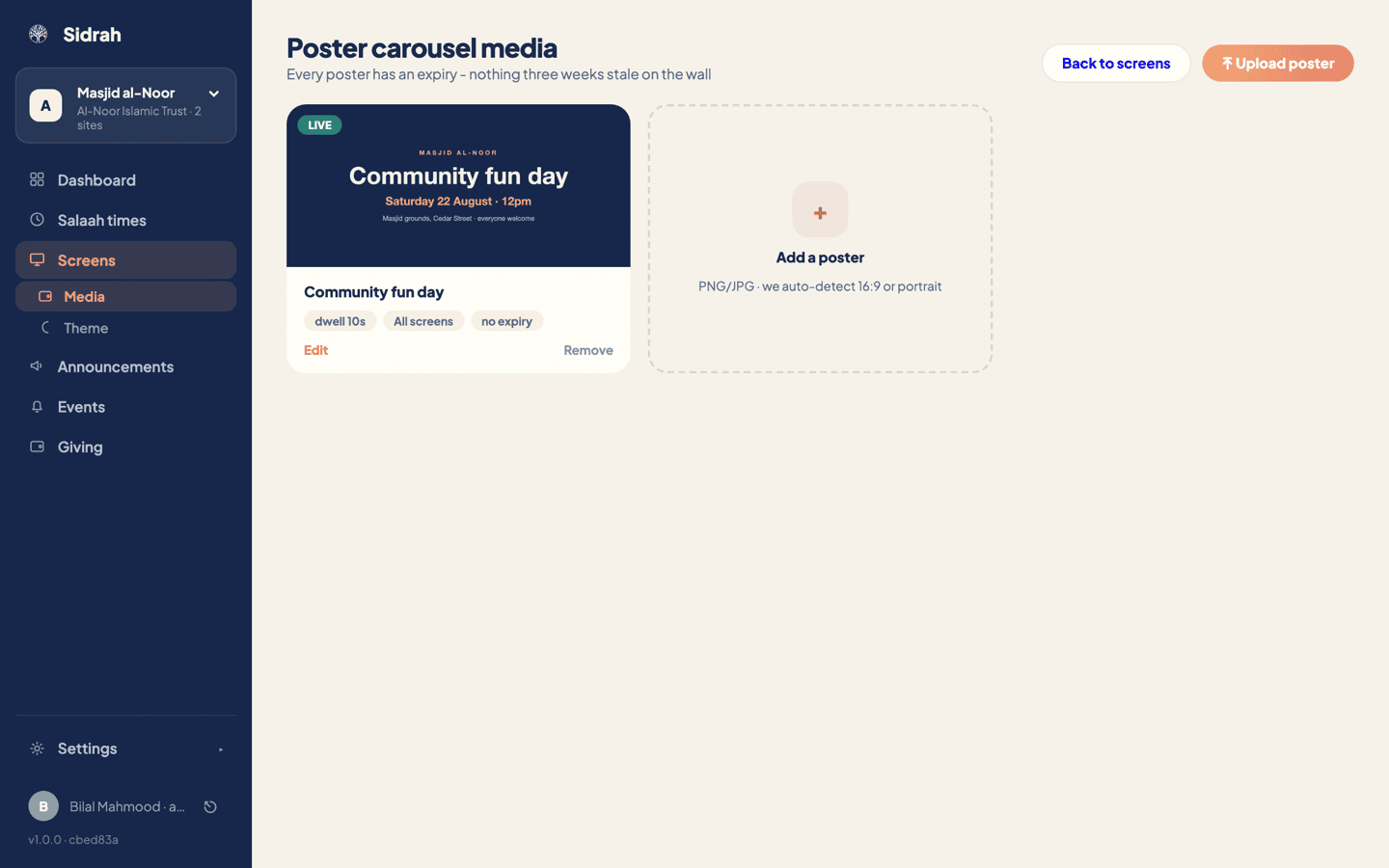
Open Screens, then Media underneath it, and choose Upload poster - or click the dashed Add a poster tile, which does the same thing. Sidrah takes PNG and JPG files and works out for itself whether the artwork is 16:9 or portrait, so you do not have to tell it. Whatever your designer sent over is almost certainly fine as it is.
The new poster arrives with the file name tidied up as its title and a dwell of ten seconds, ready for you to adjust.
Give it a title, a dwell and an end date #
Choose Edit on the poster card. Four things to set:
- Title - for you and your team, not for the wall. Make it something you will recognise in six months.
- Dwell (seconds) - how long it holds the carousel before the next poster, anywhere from 3 to 120. Ten is a good default; a poster with a lot of small print deserves fifteen or twenty.
- Expires - the date it should stop showing. Leave it empty and the chip reads "no expiry", meaning it runs until you remove it.
- Show on - tap the screens it belongs to. Select none and it goes on All screens, which is usually what you want.
The badge on the artwork tells you where each poster stands at a glance: LIVE in green, EXPIRES SOON in coral as the date comes up, and EXPIRED once it has passed.
Set an expiry on anything with a date in it - the fundraiser, the trip, the parents' evening. It is the one habit that keeps a display looking cared for. Nothing three weeks stale on the wall.
Put the rotation in the right order #
Once you have more than one poster, a Carousel · rotation order panel appears below the grid, listing them in the order the screens will show them with their dwell alongside. Use the up and down arrows to move a poster along.
Posters only appear on a screen whose layout carries a poster carousel zone. If yours are uploaded but nothing shows, add that zone in the screen designer and publish.
Looking for sound? The screens are silent by design. The only sound a screen ever makes is a short, soft chime - at iqamah, and optionally as the prayer time comes in - and both toggles live on the theme page. See Themes and appearance.