
Open Salaah times in the left-hand menu. Day-by-day editing is available when your source is Manual or an imported timetable. If the page is set to Calculate or Follow, the days are derived from somewhere else and the pencil buttons will not appear - switch the source first.
Find the day in the month grid #
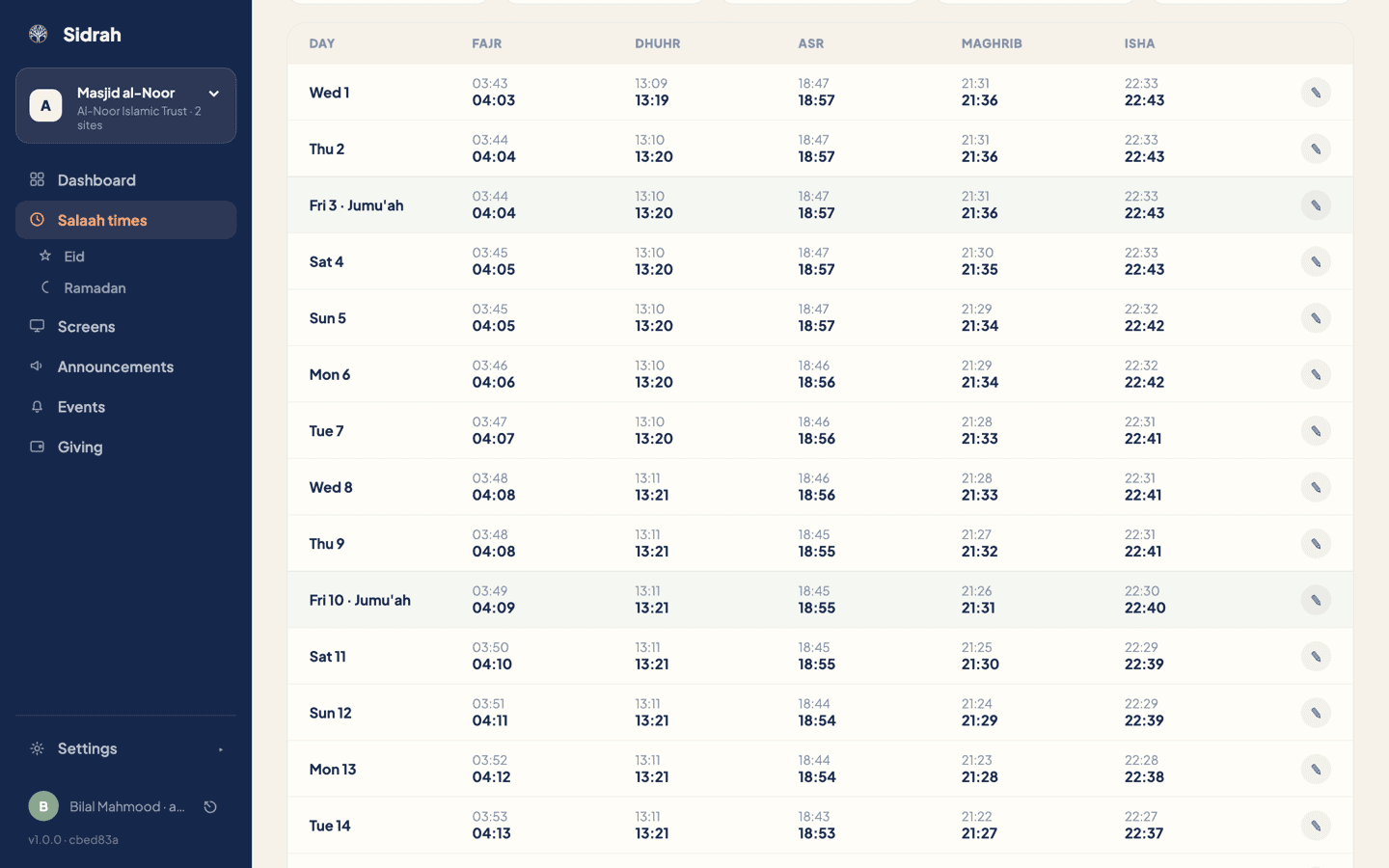
The grid runs down the page a day at a time, with a column for each salaah. In every cell the lighter time on top is the adhan and the bold time underneath is the iqamah. Today's row is outlined, Fridays are tinted and labelled Jumu'ah, and the arrows beside the month name at the top of the page move you between months.
Open the day and change the times #
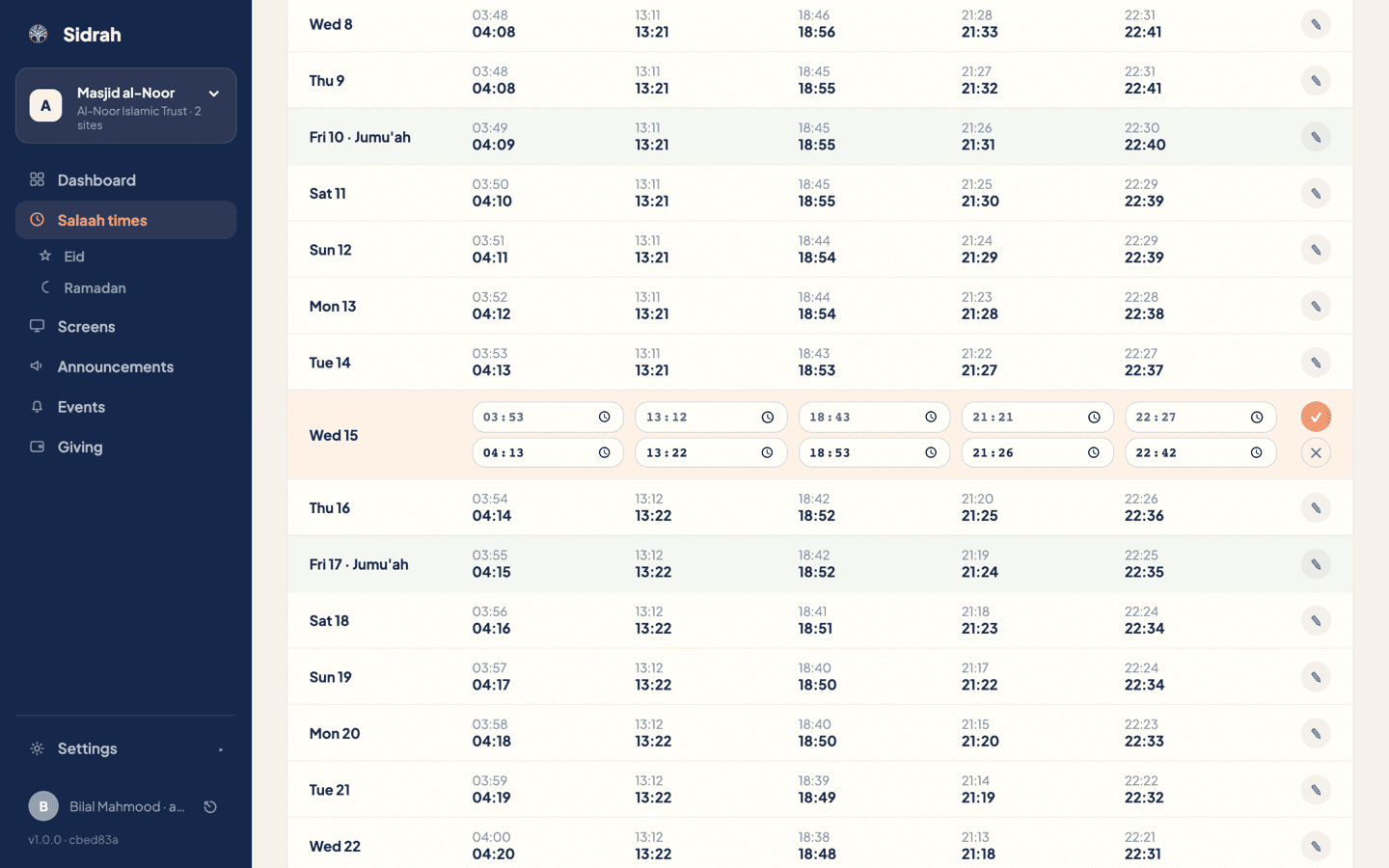
Click the pencil on the row you want. The row opens in place and turns into ten small time boxes: the top row is the five adhan times, the bottom row is the five iqamah times. Type over whichever ones you need and leave the rest as they are.
You do not need to leave the row to see whether it makes sense. Sidrah checks the whole day as you type, so an iqamah cannot land before its own adhan, one salaah's iqamah cannot creep past the next salaah's adhan, and Fajr and Dhuhr must sit either side of sunrise. If something is out of order the offending boxes are outlined in red, the reason is spelled out above the grid, and the tick button will not save. Fix the box it is pointing at and the tick comes back to life.
Say whether it is a one-off or every year #
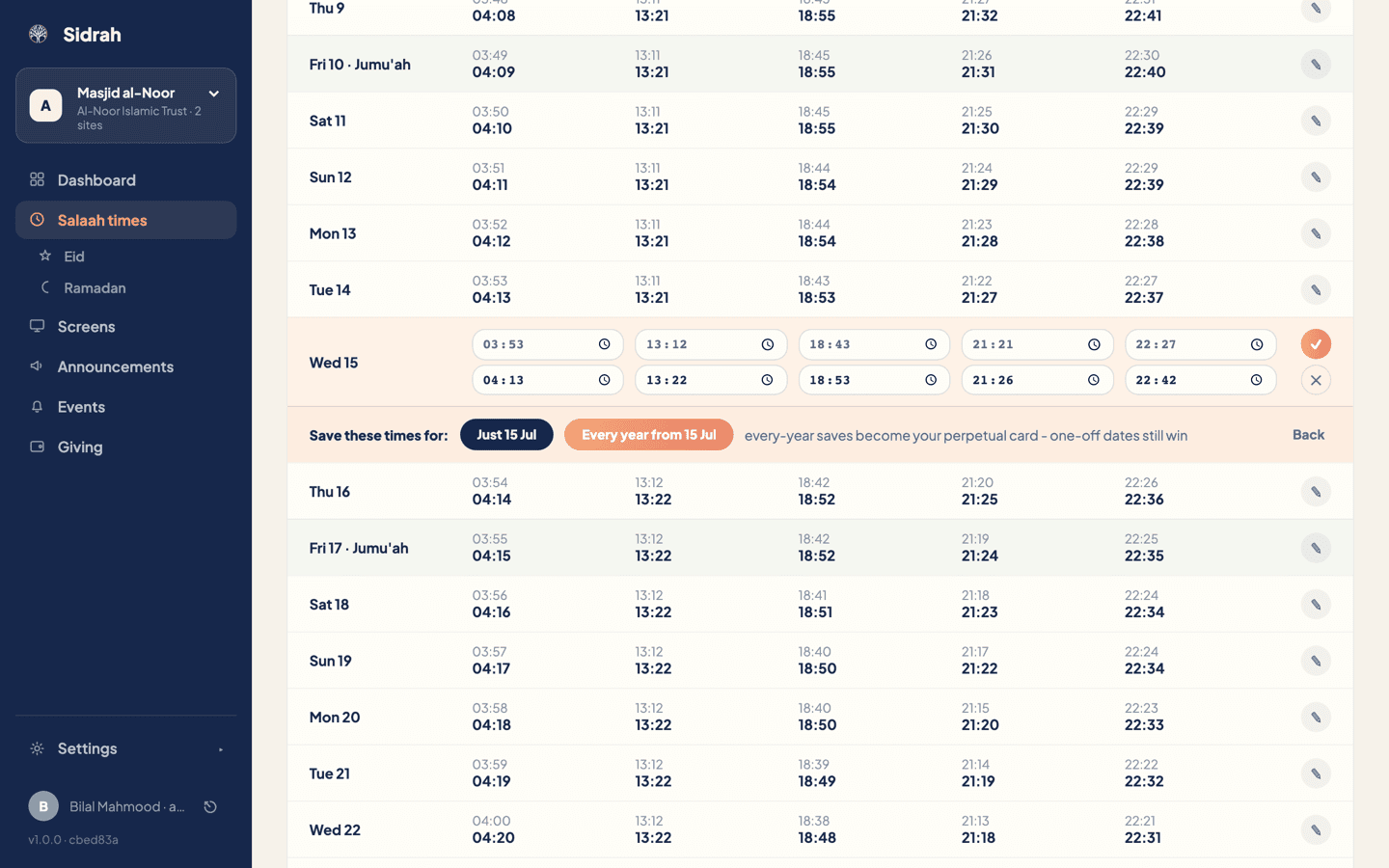
Press the tick and Sidrah asks the one question that matters: Save these times for:
- Just 15 Jul - the change applies to that single date and nothing else. This is what you want for a one-off.
- Every year from 15 Jul - the day and month are stored without a year, so 15 July carries these times in every year from now on. This is your perpetual timetable, the same thing an every-year import creates.
The two can live together happily. A one-off date always wins over the every-year entry for its own date, so you can set your usual perpetual timetable and still override a single Ramadan Wednesday without unpicking anything. Back returns you to the boxes if you change your mind.
Deal with the draft announcement #
As soon as the change saves, a Change saved banner appears above the grid with a Review draft button. Sidrah has written your community a "time change" announcement for you, but it has only drafted it - nothing reaches anybody until you open it and publish it.
If the change is worth telling people about, press Review draft, tidy the wording and publish it like any other announcement. If you were only correcting a typo, press Dismiss and the draft stays quietly where it is.
A nudge on the Dashboard reminds you when an auto-drafted time change is still sitting unpublished, so a genuinely important change will not be forgotten if you get called away mid-job.
Watch for the clock change #
When British Summer Time is about to start or end, a Clocks change banner appears on this page for the three weeks leading up to it. Your times are always stored and shown in your masjid's own timezone, so nothing breaks - but an every-year timetable simply replays the same clock times, and the week around a clock change is exactly where that can look wrong.
When you see the banner, open the days either side of the change and give them a quick look. Two minutes then saves a phone call on the Sunday morning.