
Open Salaah times in the left-hand menu and press Import at the top of the page. The importer runs in three stages - Upload, Review, Commit - and nothing at all is saved until you reach the last one.
Get your spreadsheet into the right shape #
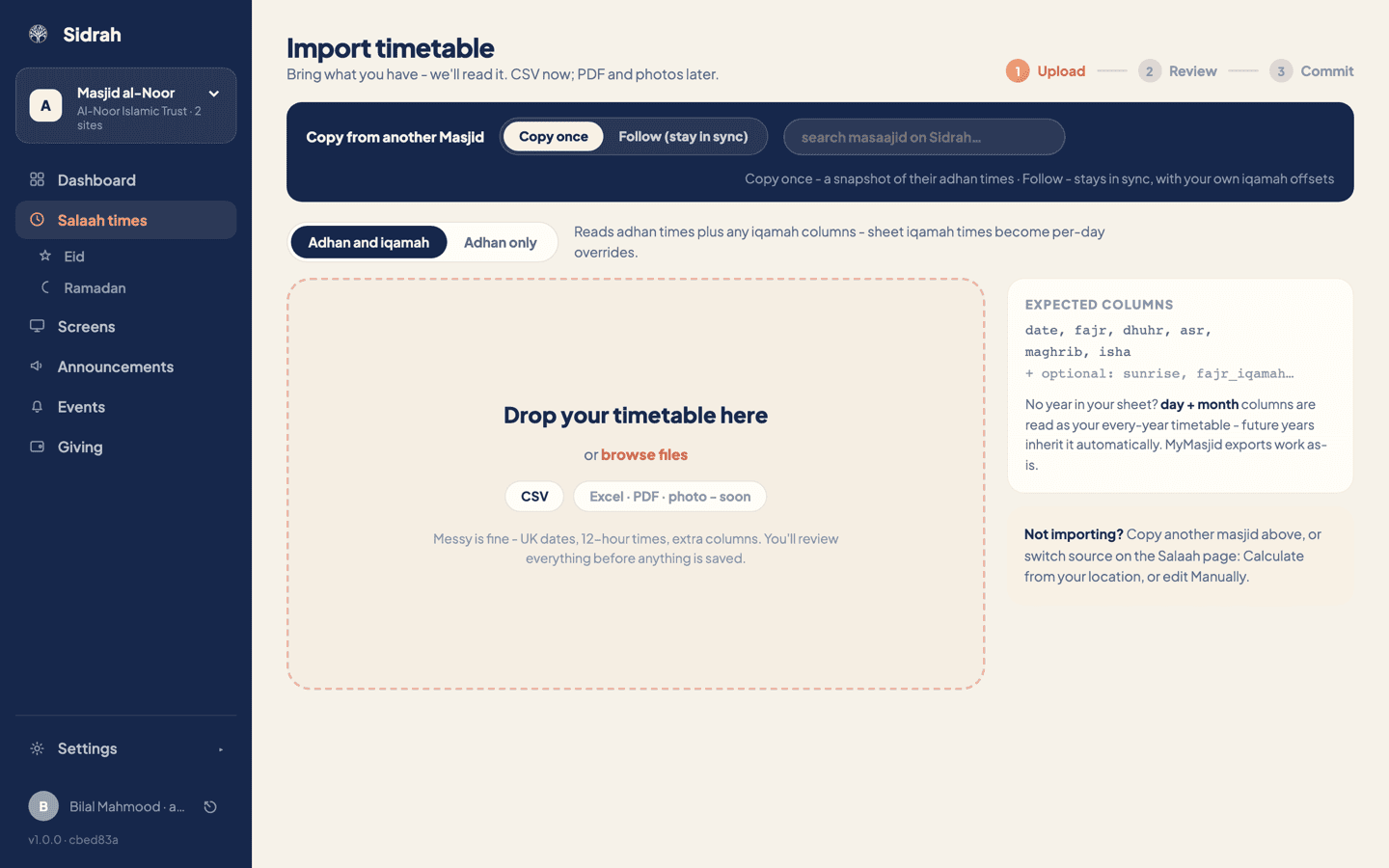
The panel on the right of the upload step lists what Sidrah looks for: date, fajr, dhuhr, asr, maghrib, isha, plus optional columns such as sunrise and the per-prayer iqamah columns like fajr_iqamah. Headings are matched by name, so the order of your columns does not matter and any extra columns are simply ignored.
The parser is deliberately forgiving. UK dates, twelve-hour times with am and pm, stray spaces and extra columns are all fine, and exports from MyMasjid work as they are. If your sheet has separate day and month columns and no year at all, that is read as an every-year timetable: future years inherit those times automatically until you change them.
No spreadsheet to hand? Set the page to Calculate, press Export, and you get the whole year as a tidy CSV in exactly the shape the importer reads back. Adjust the iqamah columns in Excel or Numbers, import it again, and you have calculated adhan times with your own iqamah times on top.
Choose the mode and upload the file #
Above the drop zone is a two-way switch:
- Adhan and iqamah - reads the adhan times plus any iqamah columns in your sheet, and those sheet iqamah times become per-day overrides.
- Adhan only - reads the adhan times and ignores everything else, leaving iqamah to your per-prayer iqamah rules. Choose this if your masjid works on "ten minutes after the adhan" rather than a fixed printed iqamah.
Then drag your file onto the dashed panel, or press browse files. CSV is supported today; Excel, PDF and photos of a printed timetable are coming.
Review what Sidrah read #
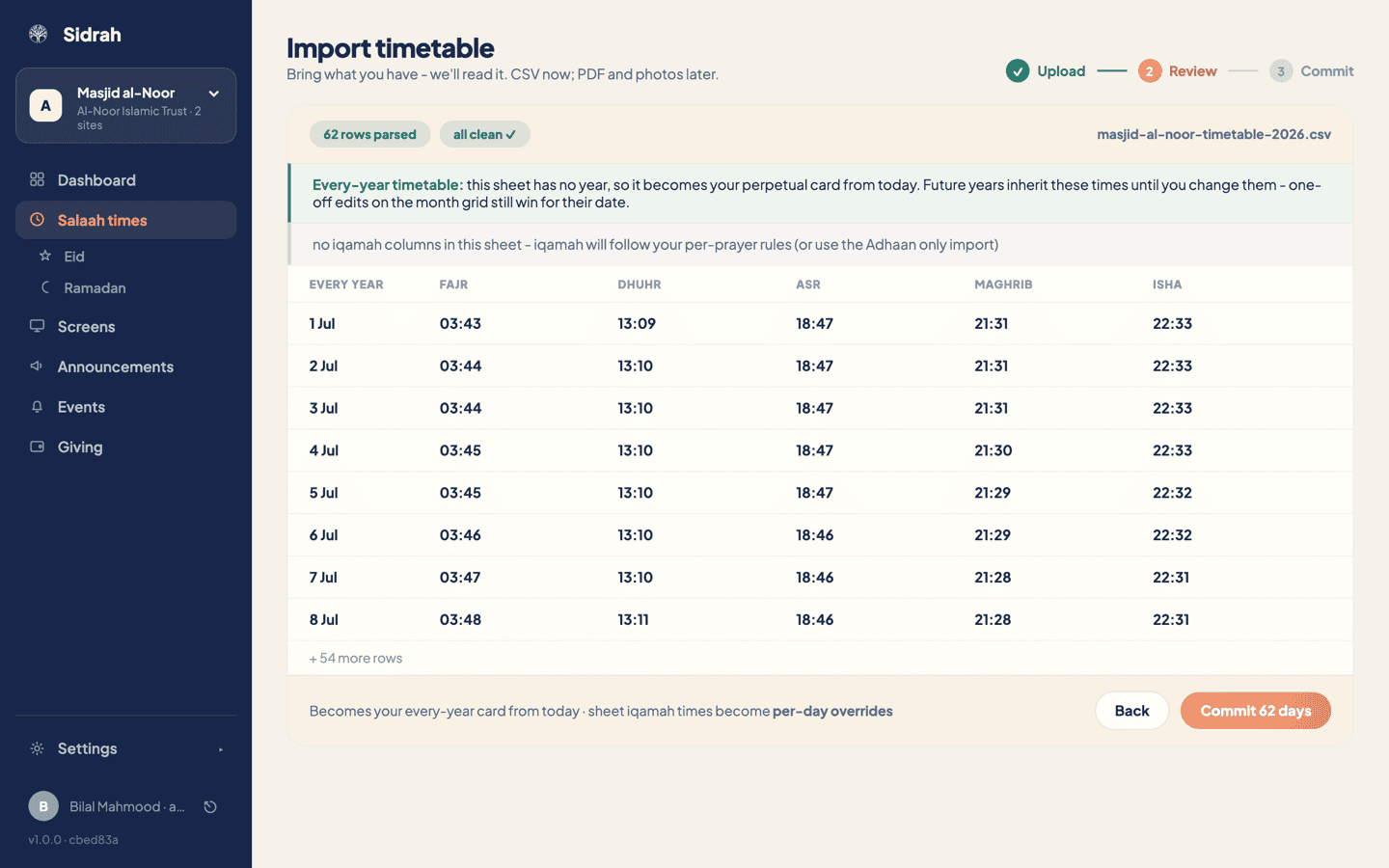
The Review step reports how many rows it parsed, tells you whether they are all clean, and shows the first eight so you can sanity-check the times against your printed copy. If your sheet had no year, a green banner confirms it is becoming your every-year card from today, and reminds you that one-off edits on the month grid still win for their own date.
Anything the parser could not make sense of is listed as a numbered issue against the line in your file, so you can go straight to that row in the spreadsheet and fix it. The commit button stays locked while issues remain - it reads Fix N issues first instead of Commit N days. Correct the file and upload it again.
When you are happy, press the commit button. Your times go live on the app and on every paired screen straight away, and the page switches its source to a manual timetable, because an imported timetable is your own timetable.
Or borrow another masjid's timetable #
If your times come from a masjid down the road, you do not need a spreadsheet at all. The navy bar at the top of the Upload step searches every masjid on Sidrah and offers two ways to use them:
- Copy once - takes a snapshot of their adhan times now. From then on the timetable is yours and nothing they do afterwards changes it.
- Follow (stay in sync) - a live link. When they change a time, yours changes with it. Stop following whenever you like and the last timetable stays behind as an ordinary manual copy.
Choosing to follow opens the Follow another masjid page, where you set a per-prayer iqamah offset with the plus and minus steppers before pressing Start following. Their adhan times come across exactly as they are; your offsets apply to iqamah only, so you can follow a neighbour's adhan and still hold your own Fajr jamaat five minutes later.
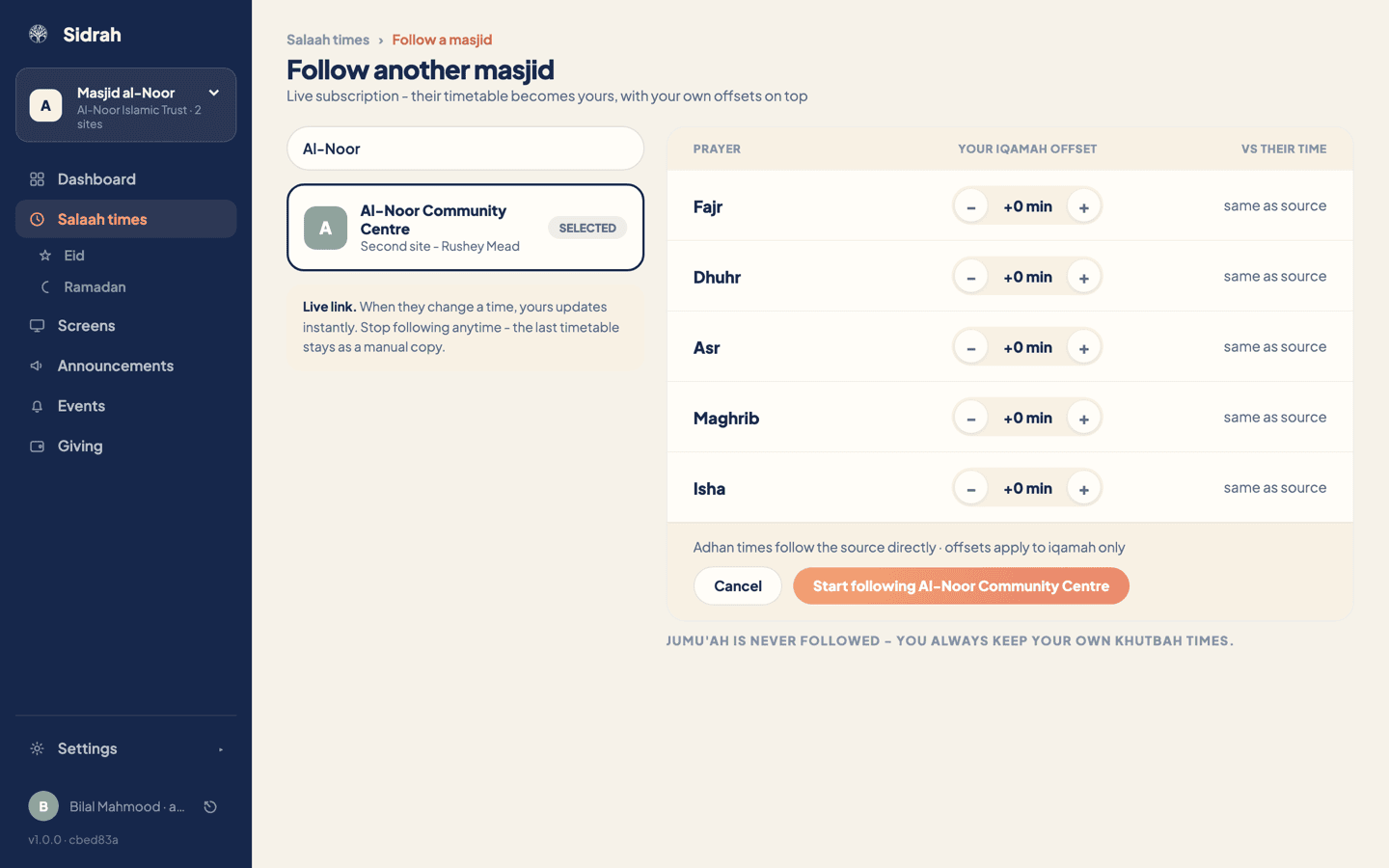
Jumu'ah is never followed - you always keep your own khutbah times. Sidrah also refuses chained follows, so you cannot follow a masjid that is itself following somebody else.