
The organisation pages sit under Settings at the bottom of the left-hand menu, alongside Facilities and Photos. Org owners and the finance role can see the organisation overview; facilities can be edited by anyone holding Admin, Marketing or Editor at that masjid, or by an org owner. Pictures have a guide of their own - see Photos of your masjid.
Open the organisation overview #
Click Settings ▸ Organisation. The top of the page is four stat tiles for the whole trust: subscribers across all sites, screens and how many are live, donations this month, and Gift Aid claimable. Below them is one row per masjid, showing that site's monthly goal progress and screen health.
If your trust runs more than one site, the Open link at the end of a row switches the whole dashboard to that masjid, exactly as the masjid switcher at the top of the sidebar does.
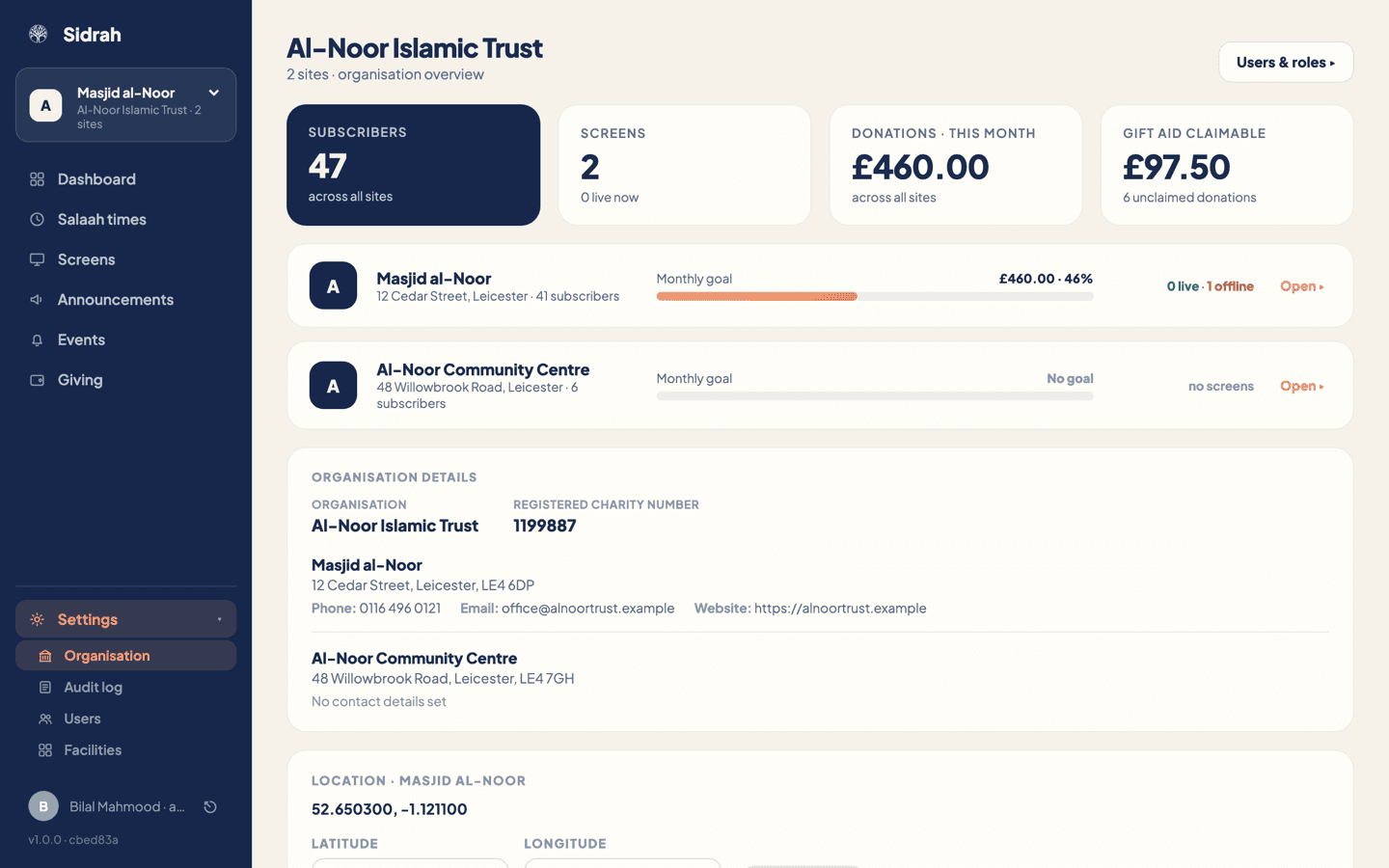
Most of the Organisation details card lower down - your registered name, and each masjid's address and contact details - is display-only in the admin. That is deliberate: those fields sit behind your public listing and we would rather a person checked a change than a stray click renamed your masjid. To correct any of it, email sidrah@lotetreemedia.com and we will update it for you.
The one field on that card you can change yourself is the Registered charity number, and only an org owner sees the Add or Edit link beside it. It is what turns Gift Aid on, so it is covered where it matters, in Set up giving.
Drop your map pin in the Location card #
Scroll to the bottom of the same page for the Location card. It names the masjid you are editing, because a trust with several sites needs one pin each.
This is the only place the pin is set, and it matters more than it looks. The Discover map in the Sidrah app draws one pin per masjid from these coordinates, so a masjid with no pin simply is not on the map. It also unlocks Subh Sadiq as a suhoor source, which several masaajid prefer during Ramadan - see Ramadan setup for that.
There are two ways to fill it in:
- Find by address - type your address or postcode, click Search, then click the result that matches. This fills the latitude and longitude boxes; it does not save anything yet.
- Latitude and longitude - type the numbers straight in if you already have them, for instance from your own maps app.
Check the coordinates look right, then click Save location. A green Saved tick confirms it.
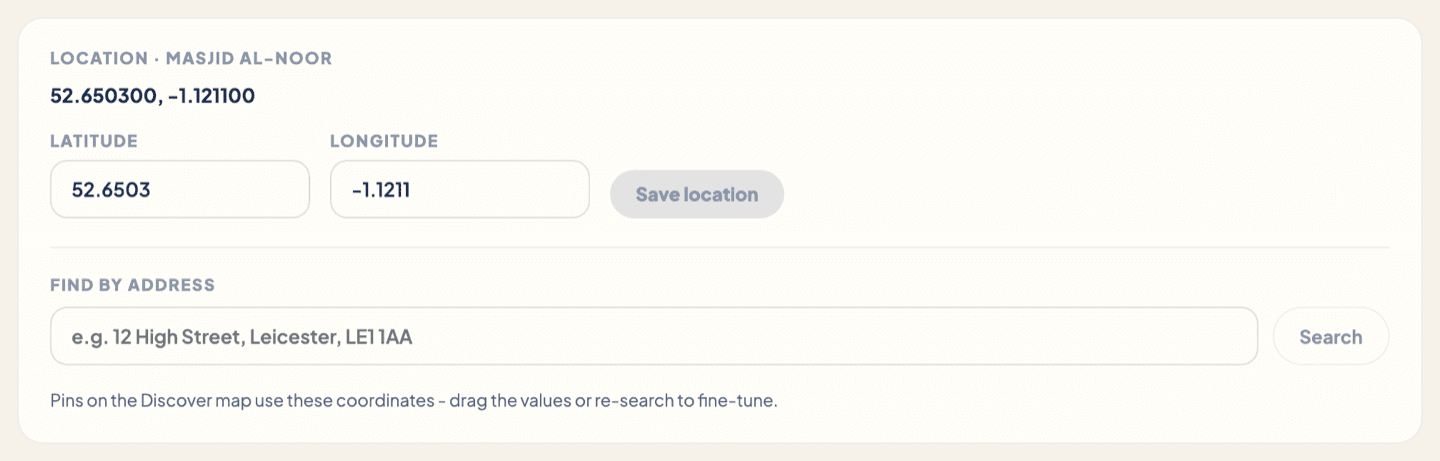
Point the pin at the door people actually use, not the middle of the building. On a large site with a separate sisters' entrance or an awkward car park, a pin a few metres out is the difference between a visitor walking in for salaah and circling the block.
Tick your facilities and services #
Go to Settings ▸ Facilities. Everything you offer is a chip you tap on or off, grouped into Prayer & access, Education, Services, Community and Practical. A ticked chip turns coral; an unticked one shows a small plus. Click Save when you are done.
These chips show on your public profile - in the app they sit under Services & facilities on your About screen, and the first two of them appear on your row in Discover. More usefully, they power the "near me with..." filters. A family looking for a masjid with a sisters' prayer area and wheelchair access is filtering on exactly these ticks, so an accurate list brings you the people you can actually serve.
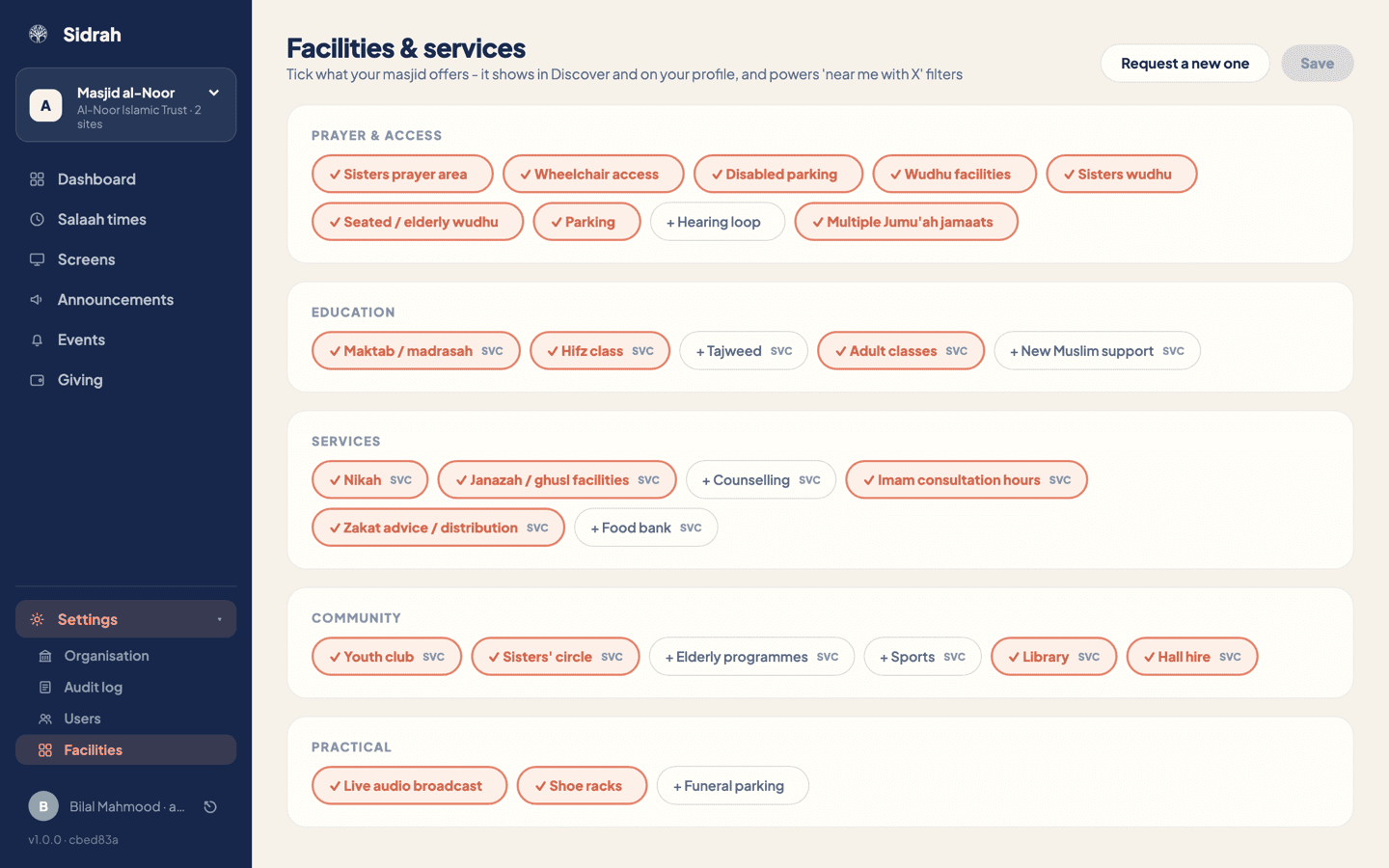
The list is a central taxonomy, kept the same across every masjid so that filters work. If something you offer is genuinely missing, click Request a new one, describe it and pick the best-fit category. It comes to the Sidrah team and we add it if it fits.
Check it worked, and check who changed what #
Open the Sidrah app and pull up Discover: your masjid should now sit on the map at the pin you set. Open its profile, tap the i button at the top right, and the About screen lists your facilities, your address with an Open in Maps link, and any photos you have added. Give it a moment to refresh if you have the app already open.
Then open Settings ▸ Audit log. The menu item is visible to everyone, but the log itself only opens for an org owner - anyone else sees an access message. It records every consequential action across the whole organisation - who did it, when, and a plain-English description - and it is append-only, so nothing can be quietly tidied away afterwards. The filter chips along the top narrow it to Times, Announcements, Roles & access or Screens, with a count beside each.
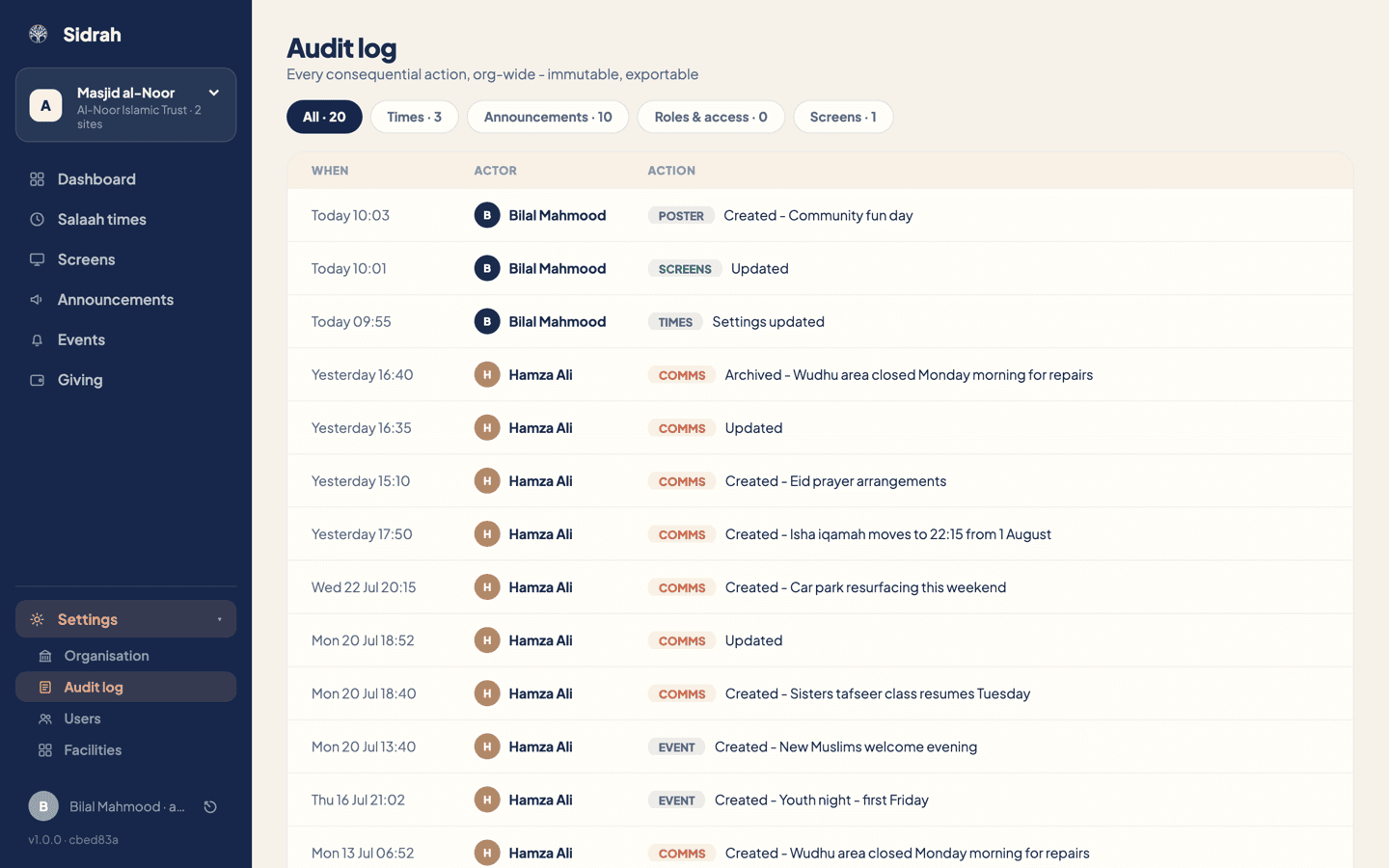
This is the page to bring to a committee meeting when somebody asks who moved Isha, and it is the reason we ask you to invite volunteers under their own email address rather than a shared one.