
Inviting and archiving people is an org owner's job. If you can see the + Invite member button in the top right of the Users page, you are an owner. If you cannot, ask whoever registered the masjid to add you or to make the change for you.
Open the Users page #
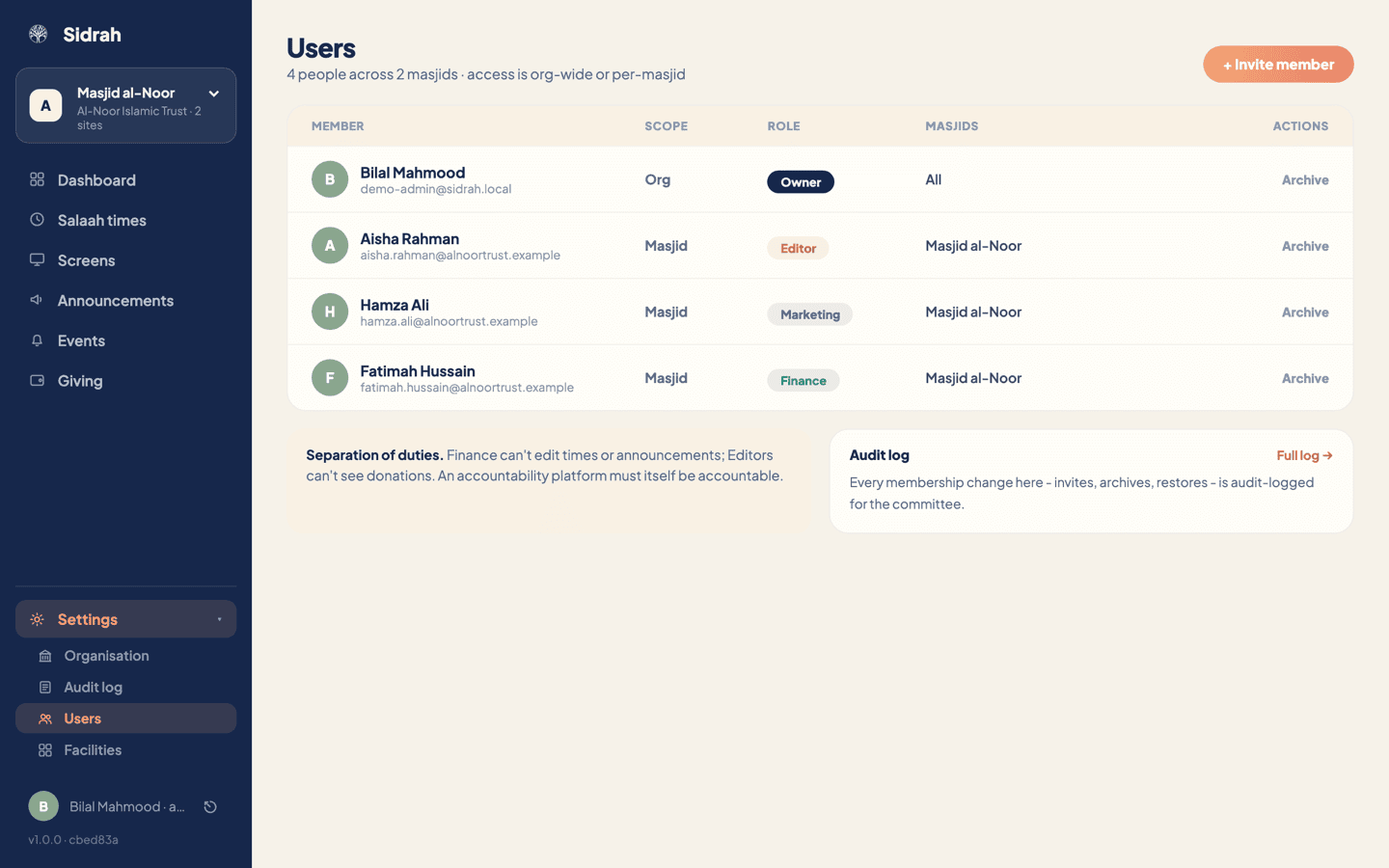
At the bottom of the left-hand menu, click Settings to expand it, then Users. One table lists everybody across the whole organisation, whether they look after one masjid or all of them.
Each row tells you four things: who the person is, their Scope (Org or Masjid), their Role as a coloured badge, and which Masjids they can reach. Anyone holding more than one masjid shows as "Multi" with a small arrow you can click to see the role they hold at each site.
Invite someone by email #
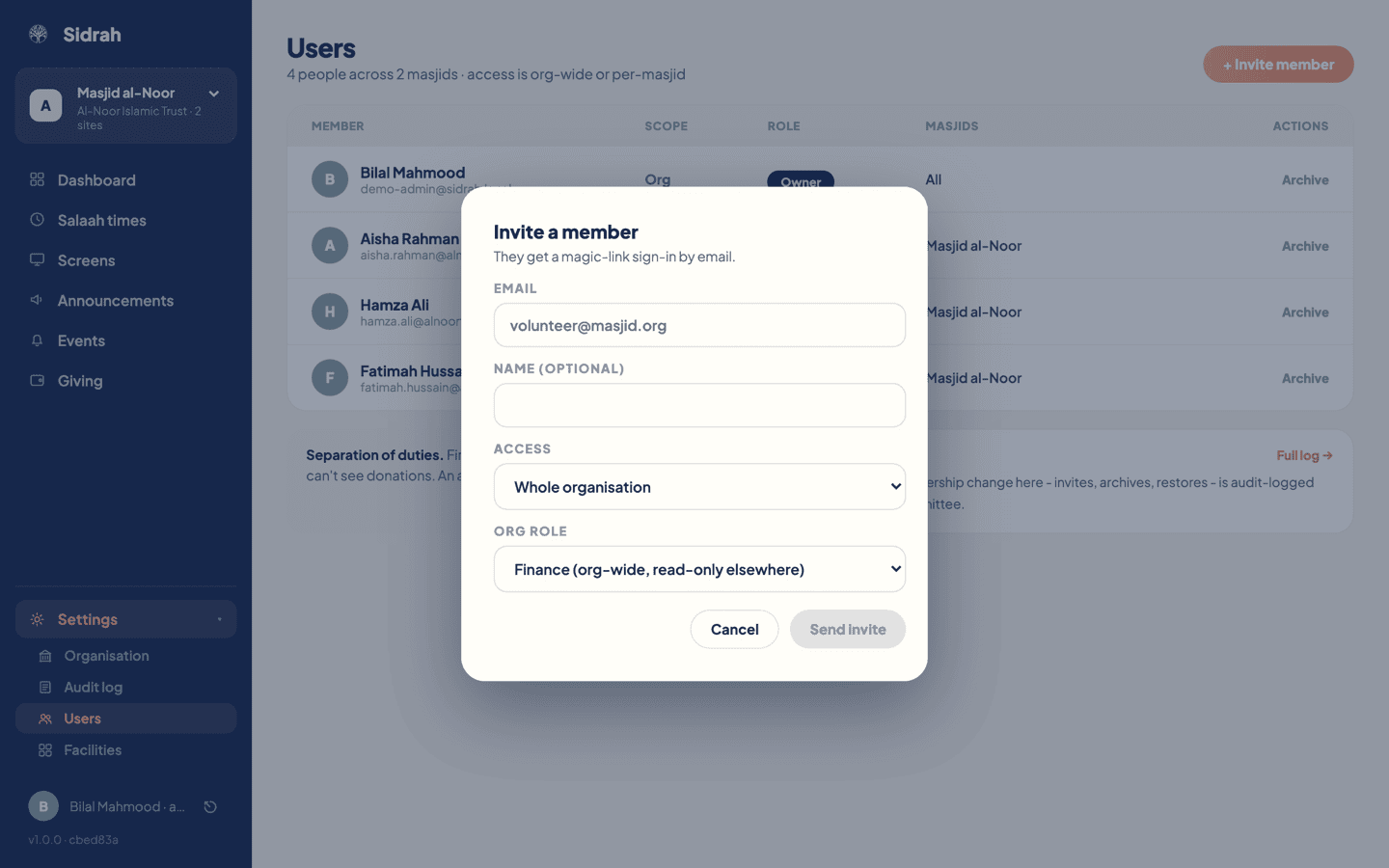
Click + Invite member and fill in three things:
- Email - the address they will sign in with. Use a personal address for each volunteer rather than one shared office inbox, so the audit log can tell you who did what.
- Name (optional) - helpful, but you can leave it blank and they will fill it in themselves.
- Access - either Whole organisation, or one named masjid from the list. This is the important choice, and it decides which set of roles you are offered next.
Click Send invite and they get an email with a magic link. They click it and they are in, with no password to choose, forget or share around a WhatsApp group. The sign-in lasts thirty days, then the link is sent again.
Pick the role that matches the job #
If you chose Whole organisation, there are two org roles:
- Owner (full access) - everything, everywhere, including inviting and archiving other people. Keep this to the two or three trustees who genuinely need it.
- Finance (org-wide, read-only elsewhere) - sees giving and Gift Aid across every site, and reads the rest without changing it. This is the treasurer's role.
If you chose a single masjid, there are four masjid roles:
- Editor (salaah times only) - can set and correct the timetable, and nothing else. Right for the brother who keeps the times up to date.
- Marketing (announcements) - writes announcements and events for that masjid.
- Finance (read-only) - sees the numbers for that site without being able to edit anything.
- Admin (full) - everything at that one masjid: times, announcements, screens and settings.
Separation of duties is the point. Finance cannot edit times or announcements, and Editors cannot see donations. It is not that we distrust your volunteers; it is that a platform built for accountability has to be accountable itself, and narrow access protects the person holding it as much as it protects the masjid.
Give the smallest role that lets someone do their job. Widening access later is one invite; explaining an accidental change to the committee is a longer conversation.
Archive people who move on, rather than deleting them #
When a volunteer steps back, click Archive on their row. Sidrah asks Archive? right there in the row; click Yes and their access stops immediately.
Archiving is a soft removal. The person stays in the list, greyed out with an Archived badge, and their name stays attached to everything they did, so last year's history still reads properly. If they come back next Ramadan, click Restore and they pick up exactly where they left off.
One thing Sidrah will not let you do is archive the last active owner. Somebody has to be able to let people back in, so that row is protected and you will see a short message explaining why instead.
Check it worked #
The new member appears in the table straight away with their scope and role badge, and the count under the page title goes up. They will be in the list before their invite email arrives.
Every membership change is written to the audit log: invites, archives and restores, each with who made the change and when. Open Settings ▸ Audit log and use the Roles & access filter chip to see them on their own. It is append-only, so it is a fair record to put in front of the committee.