The Admin screen appears only for people with the Admin or Marketing role on a masjid, and for owners of the organisation.
The phone covers announcements, events, the Hijri date and the Eid calendar. Only the Admin role (or an owner) can change the Hijri date and the Eid calendar. Ṣalāh times, screens, users, reminders and giving stay in the admin at admin.sidrah.cloud. Step 5 lists what goes where.
Sign in with the email you use for the admin #
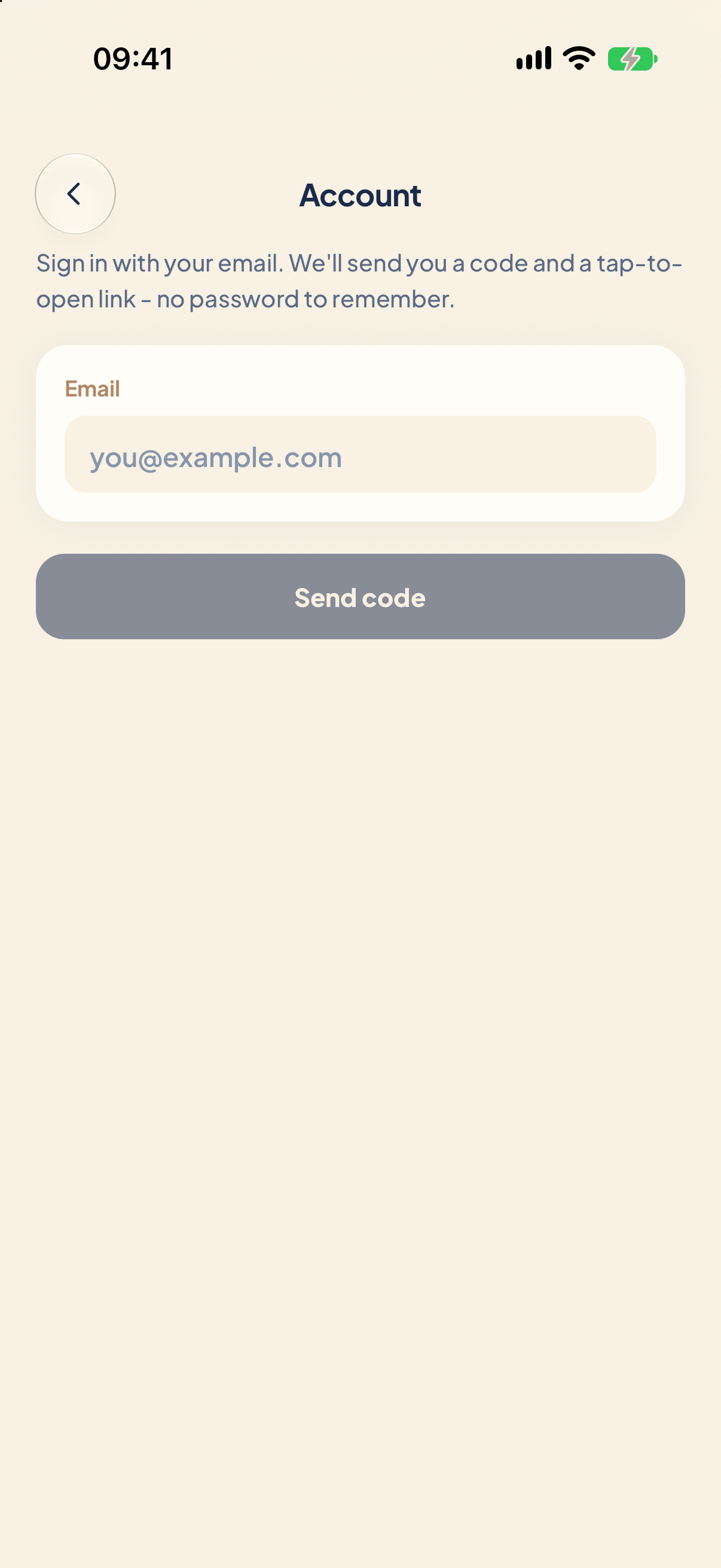
Install Sidrah from the App Store or Google Play. Open More, the last tab, and tap Sign in at the top.
Type the email address your team invited. The app and the admin share one account, so your roles come with you. A different address gives you an ordinary account with no Admin screen.
You get an email with a six-digit code and a link. Use either one. There is no password. If you are not sure which address your masjid has for you, ask whoever manages users and roles.
Open Admin from More #
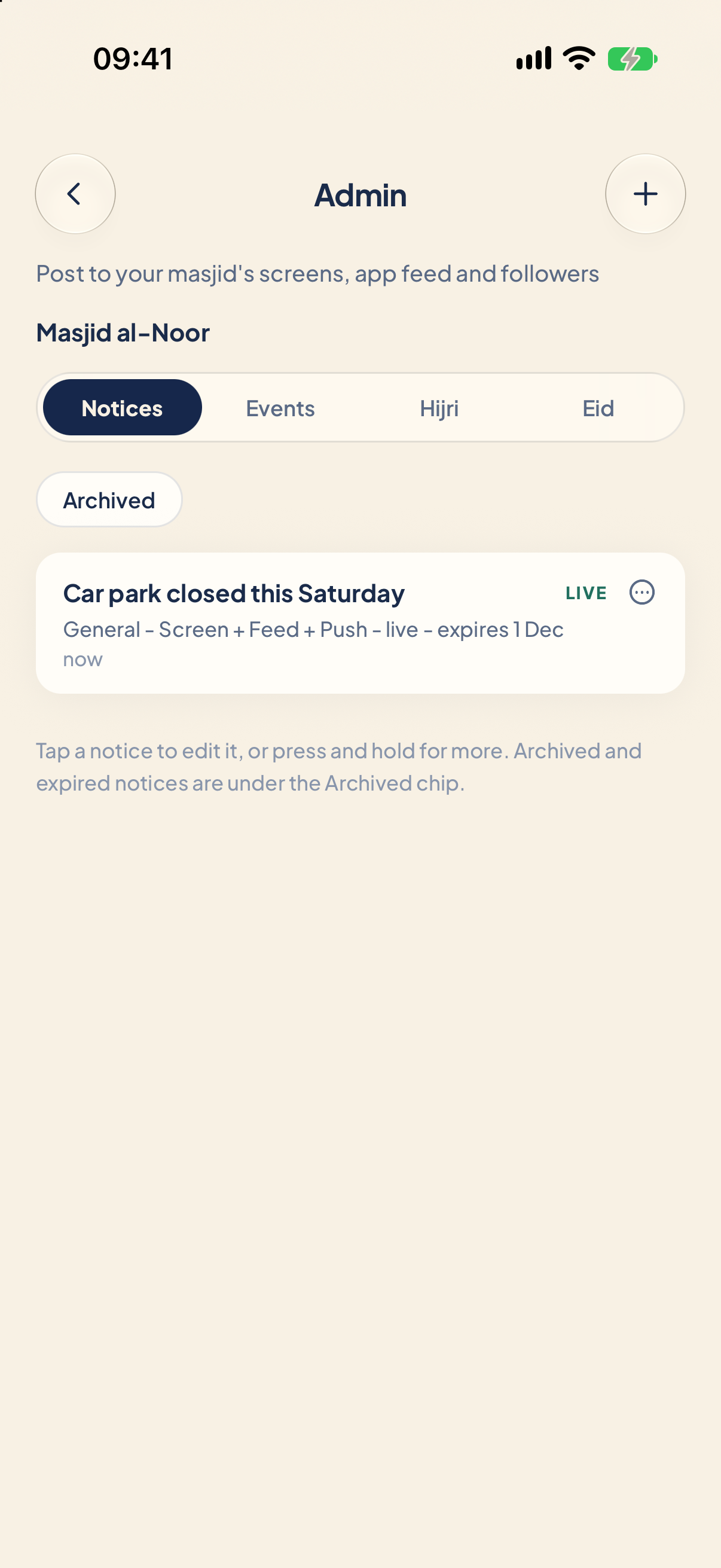
Open More again. A new Admin section has appeared with one row, Announcements and events. Tap it.
Who sees it:
- Admin and Marketing - yes, for each masjid where you hold one of those roles.
- Owner of the organisation - yes, for every masjid in the organisation.
- Editor and Finance - no.
If you look after more than one masjid, tap its name chip at the top first. Everything below applies to that masjid.
There are four sections: Notices, Events, Hijri and Eid. Notices and Events list what is already out. Archived and expired items are under the Archived chip.
Post an announcement #
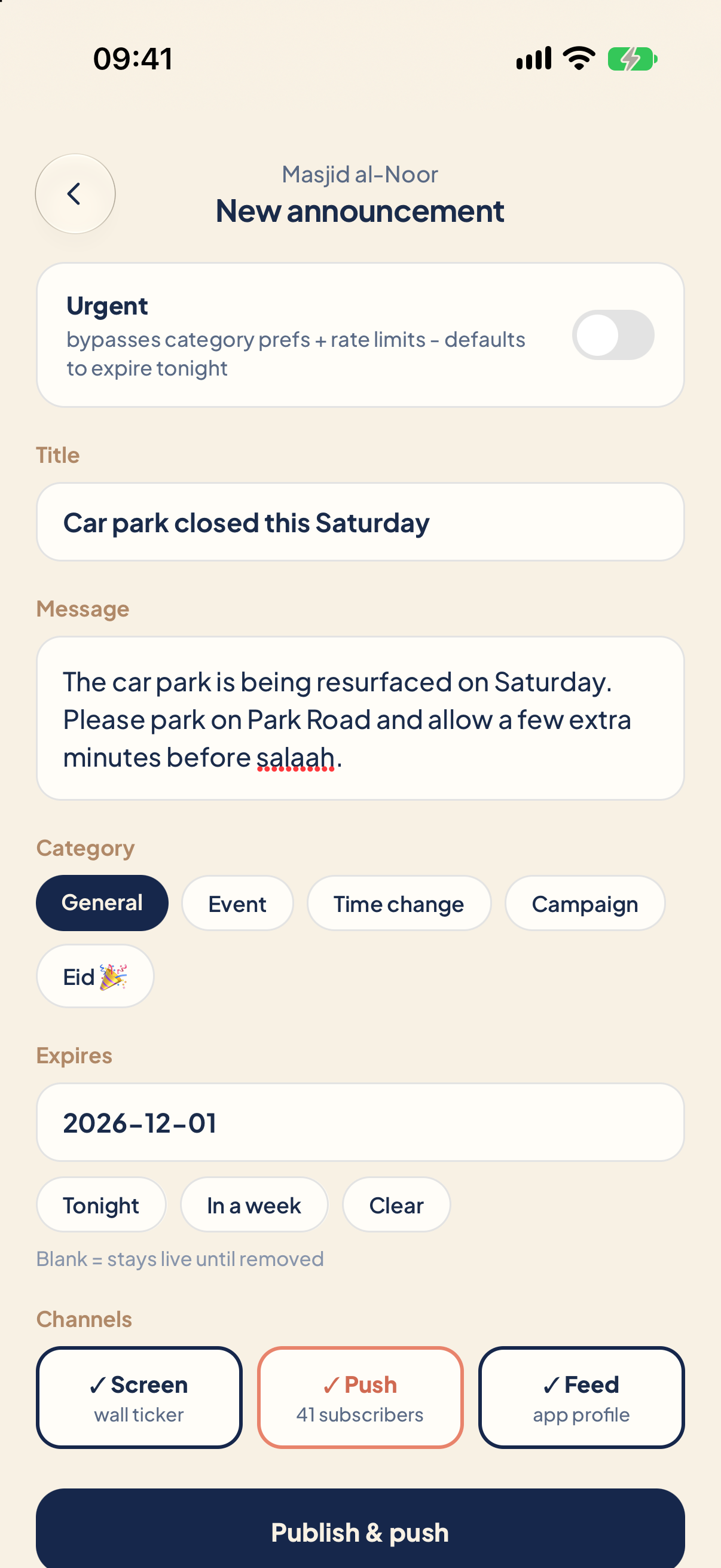
On Notices, tap +. The form has the same fields as the admin: Urgent, Title, Message, Category, Expires and Channels. Post announcements explains each one. A few things are different on the phone:
- You type the expiry date as YYYY-MM-DD, or tap Tonight, In a week or Clear. Blank means it stays up until you archive it.
- Switching on Urgent changes Category to Urgent kind, as in the admin. An urgent notice expires tonight unless you pick a date.
- The Push card shows how many followers you have.
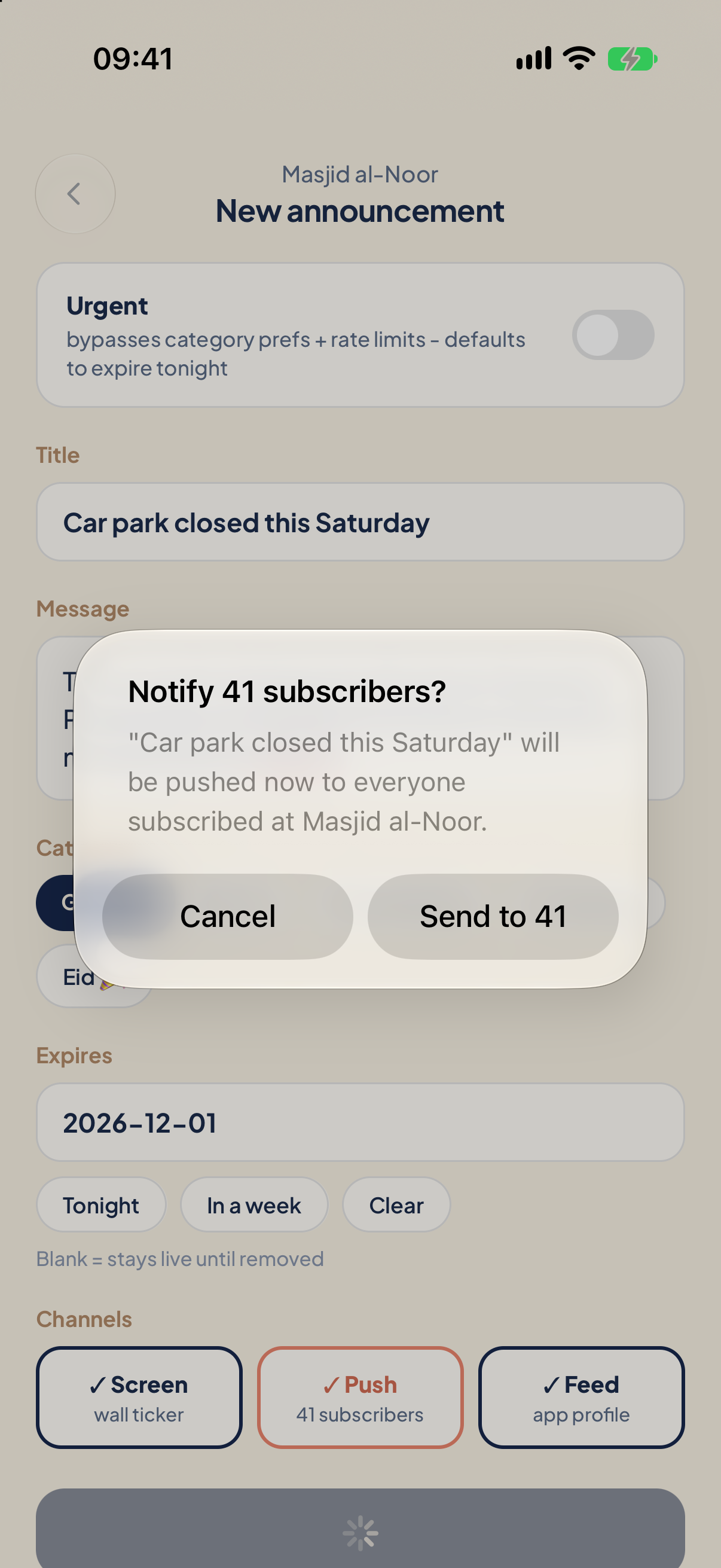
Then publish. With Push on, the phone asks twice. First it asks Publish this announcement?. Then it asks, for example, Notify 41 subscribers?, with a Send to 41 button. If you back out of the second question, the notice is published without a push.
Create or edit an event #
Switch to Events. Tap + for a new event, or tap an event to edit it. Run events explains the fields. On the phone:
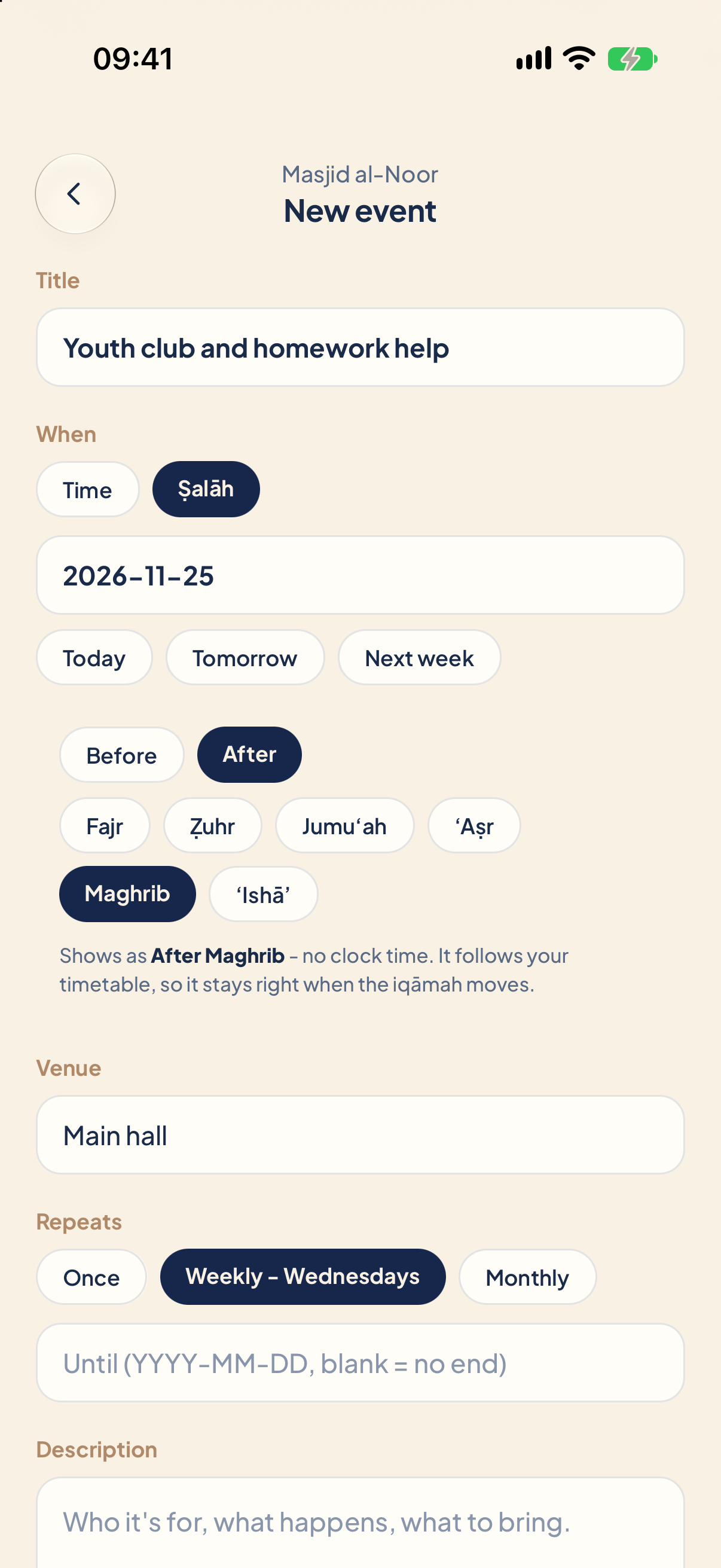
- When offers Time or Ṣalāh. With Ṣalāh, pick Before or After and a ṣalāh, and the event shows as, for example, After Maghrib, with no clock time.
- You type the date as YYYY-MM-DD, or tap Today, Tomorrow or Next week. The Until date works the same way.
- Repeats offers Once, Weekly and Monthly.
- Add an image picks a photo from your phone's library. You then frame it, as in the admin.
- Announce this event is on to start with. It sends a linked announcement to your screens and the app feed. It asks before notifying phones.
Tap Publish event and confirm, or Save draft to keep it hidden.
Know what still needs the admin #
On the phone, tap a notice or an event to edit it. Press and hold it for the other actions:
- On a notice: Publish, Send push, Archive and Unarchive.
- On an event: Cancel event, Un-cancel, Archive and Unarchive.
Hijri moves the Hijri date forward or back to match your local moon-sighting. It changes the date in the app and on your screens.
Use the admin at admin.sidrah.cloud for:
- An event's Audience and Reminders, and choosing which channels its announcement goes to.
- Eid jamā‘ah times. The Eid section on the phone sets the Eid calendar only.
- Ṣalāh times, screens and posters, reminders, users, your masjid profile and giving.
Check it worked #
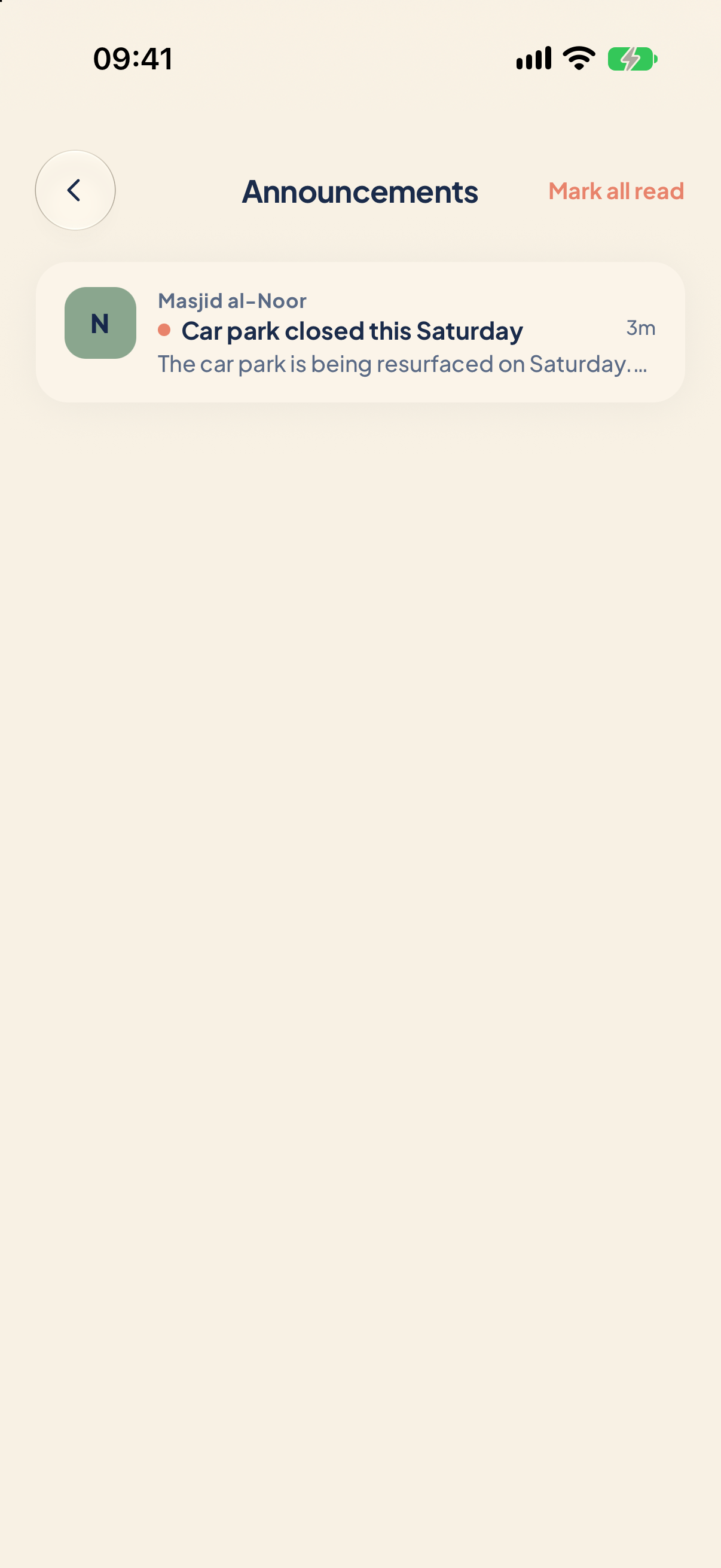
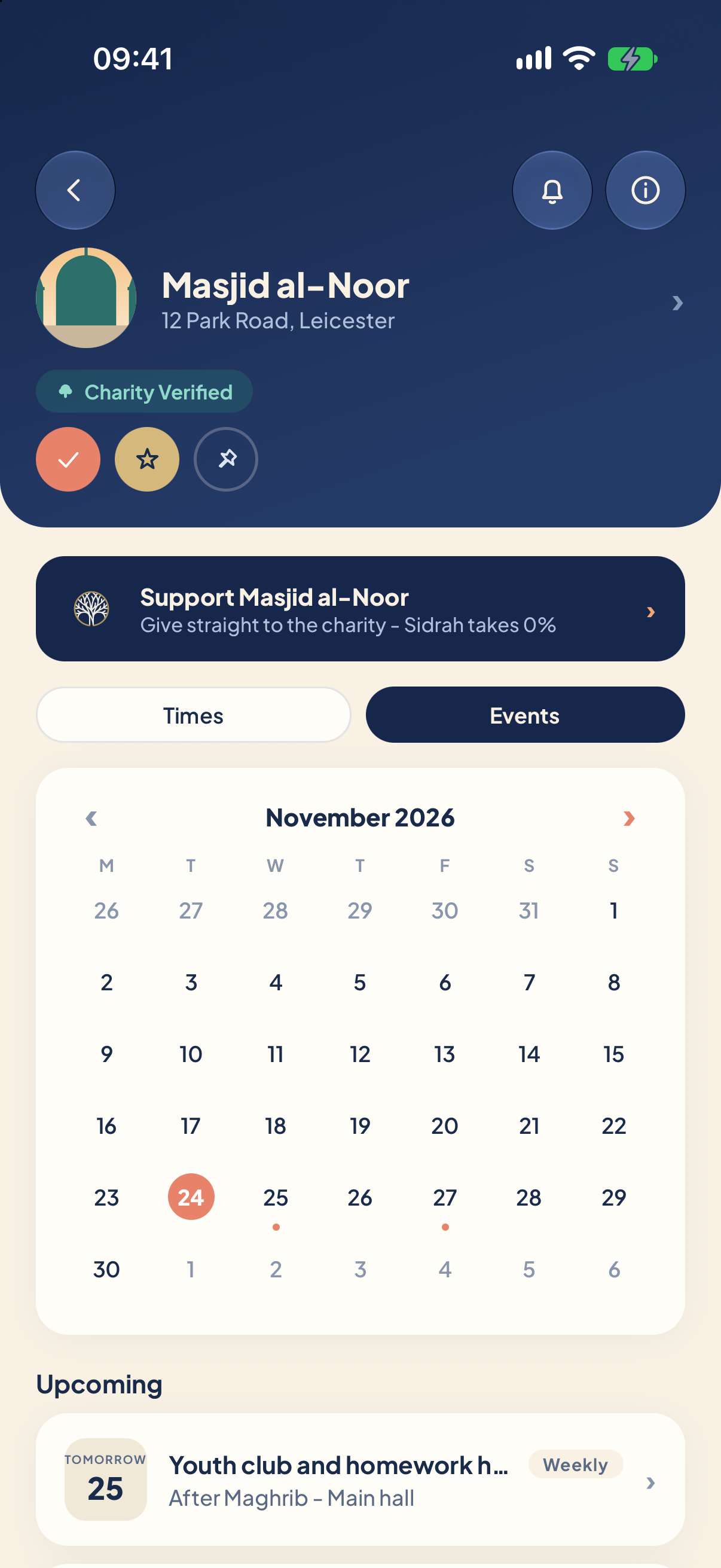
Leave Admin and look at the app as a follower would. A published notice is at the top of Announcements, behind the bell on Home. A published event is on your masjid's page under Events. Your screens show a new notice within a minute or so.
If it is missing, go back to Admin and read the row's label. DRAFT means it was saved, not published. EXPIRED means the expiry date has passed.