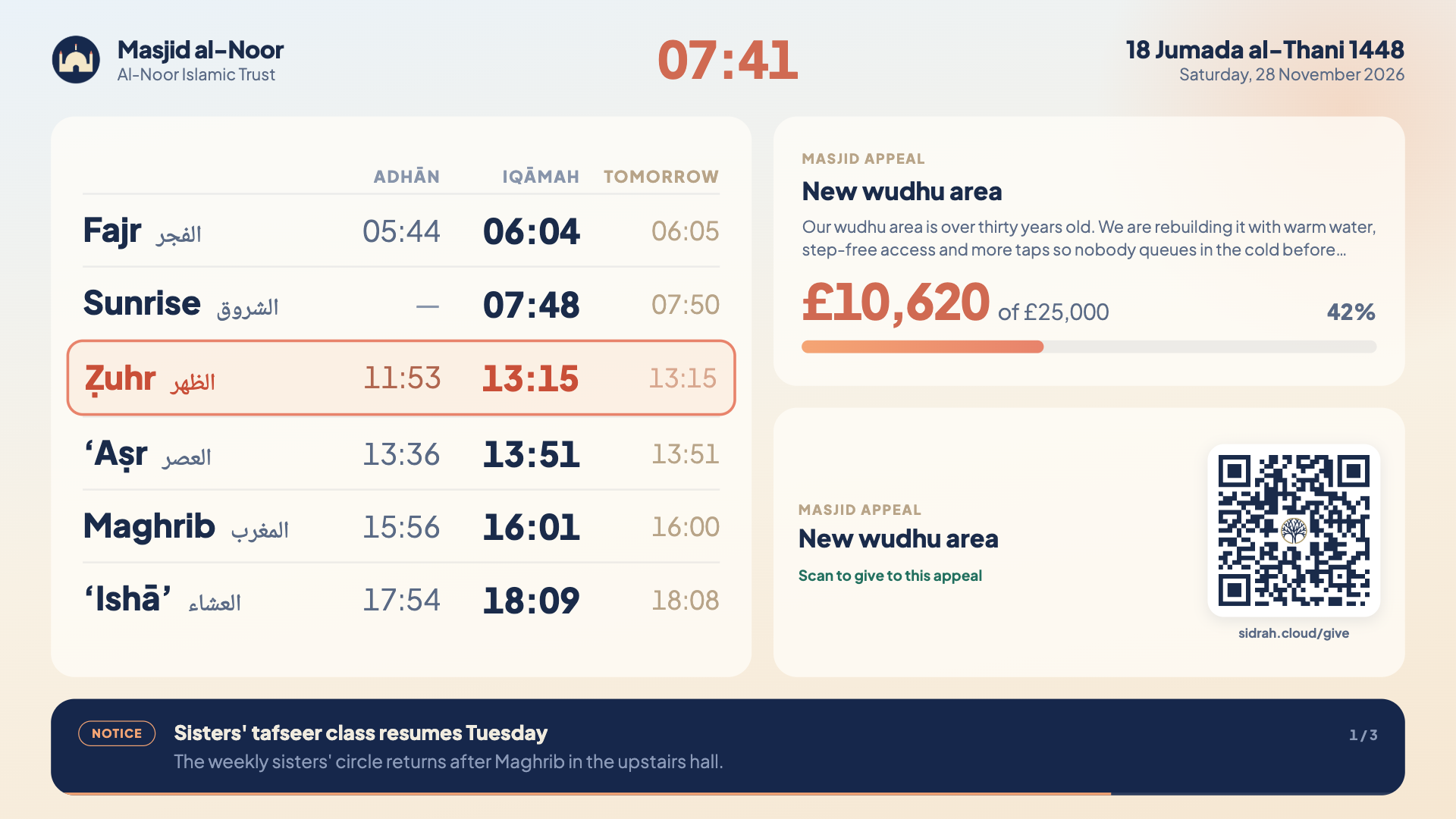
You need to be an owner of the organisation, or have the Admin or Marketing role on the masjid. For gifts to go through, your masjid must already take donations. See Set up giving.
Gifts to an appeal also count towards the masjid's monthly goal. The appeal's own total counts only the gifts made to that appeal.
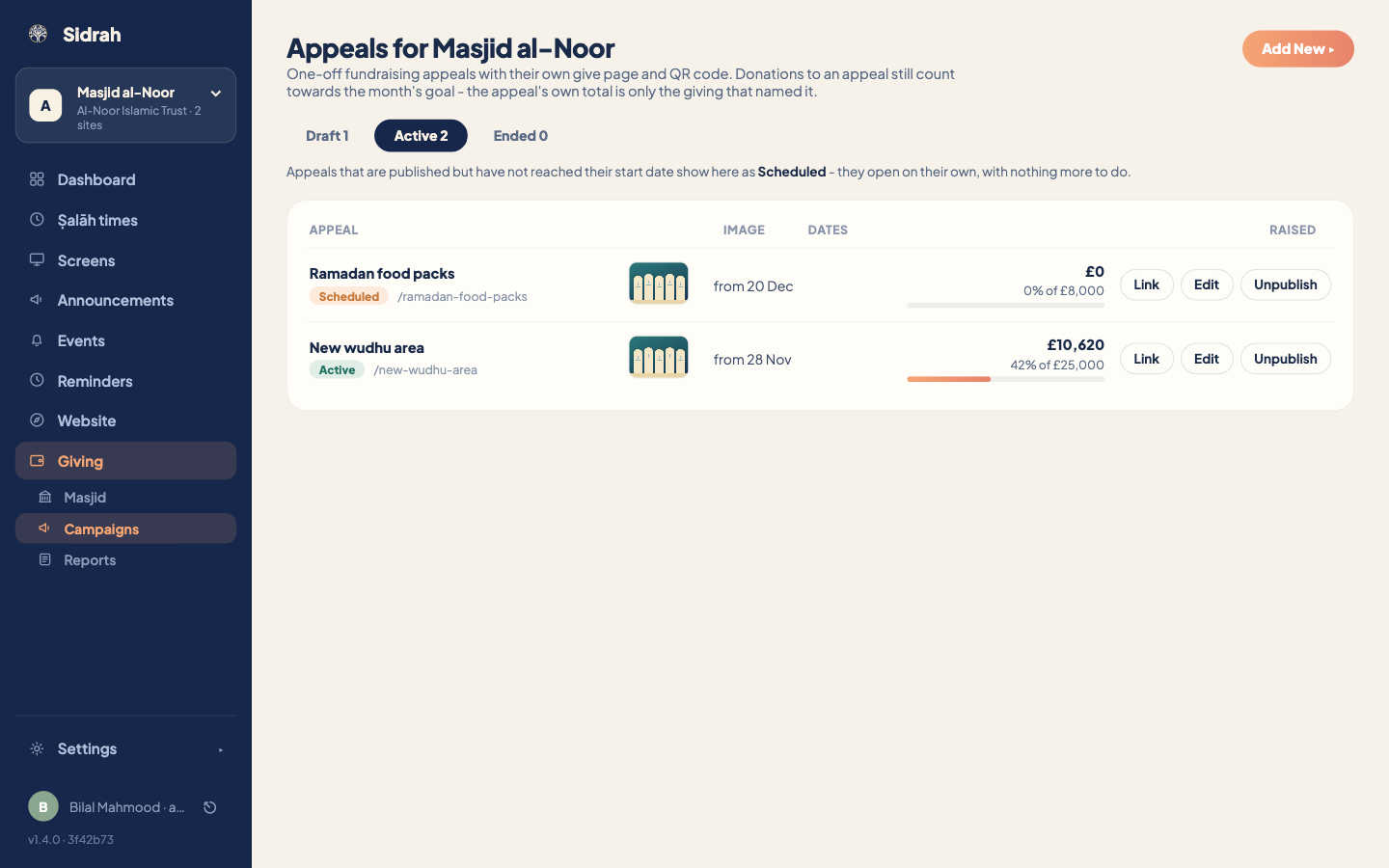
Open Campaigns #
In the menu, choose Giving, then Campaigns. The page is called Appeals for followed by your masjid's name. Three buttons sort your appeals:
- Draft - not published yet. Nobody else can see them.
- Active - running now, or Scheduled to open on a later date.
- Ended - past their last day.
Name the appeal #
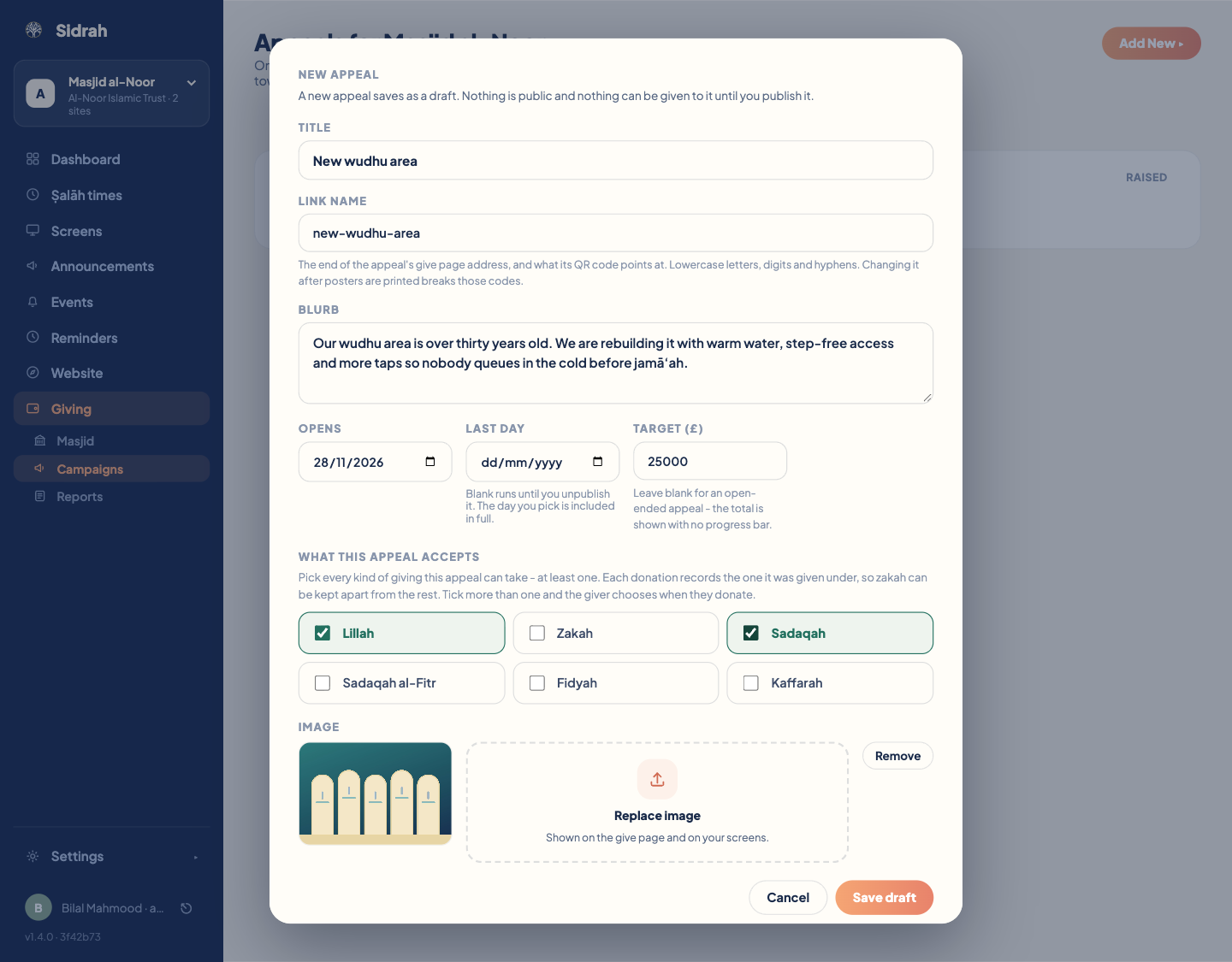
Press Add New ▸. In the New appeal form, fill in:
- Title - for example "New wudhu area".
- Link name - the end of the appeal's web address. It fills in from the title. Use lowercase letters, numbers and hyphens only.
- Blurb - what the money is for, and what it will change.
The QR code points at the link name. If you change the link name after posters are printed, those QR codes stop working.
Set the dates and the target #
Fill in:
- Opens - the first day. It starts as today.
- Last day - the appeal runs to the end of this day. Leave it blank to run until you unpublish it.
- Target - the amount you want to raise, for example in Target (£). Leave it blank for an open-ended appeal. It then shows the total raised with no progress bar.
Choose what the appeal accepts #
Under What this appeal accepts, tick every kind of giving it can take: Lillah, Zakah, Sadaqah, Sadaqah al-Fitr, Fidyah or Kaffarah. You must tick at least one.
Each gift records which kind it is, so zakah can be kept apart. If you tick one kind, every gift is recorded as that kind. If you tick more than one, the donor must choose when they give.
Add an image and save the draft #
Under Image, press Add an image. The image shows on the give page and on your screens.
Press Save draft. If the button is greyed out, the lines above it say what is missing, such as "Choose at least one kind of giving this appeal accepts."
Publish the appeal #
Find the appeal under Draft and press Publish. It moves to Active. If its opening day is still to come, it shows as Scheduled and opens by itself on that day.
To stop an appeal early, press Unpublish.
Copy the give link and download the QR code #
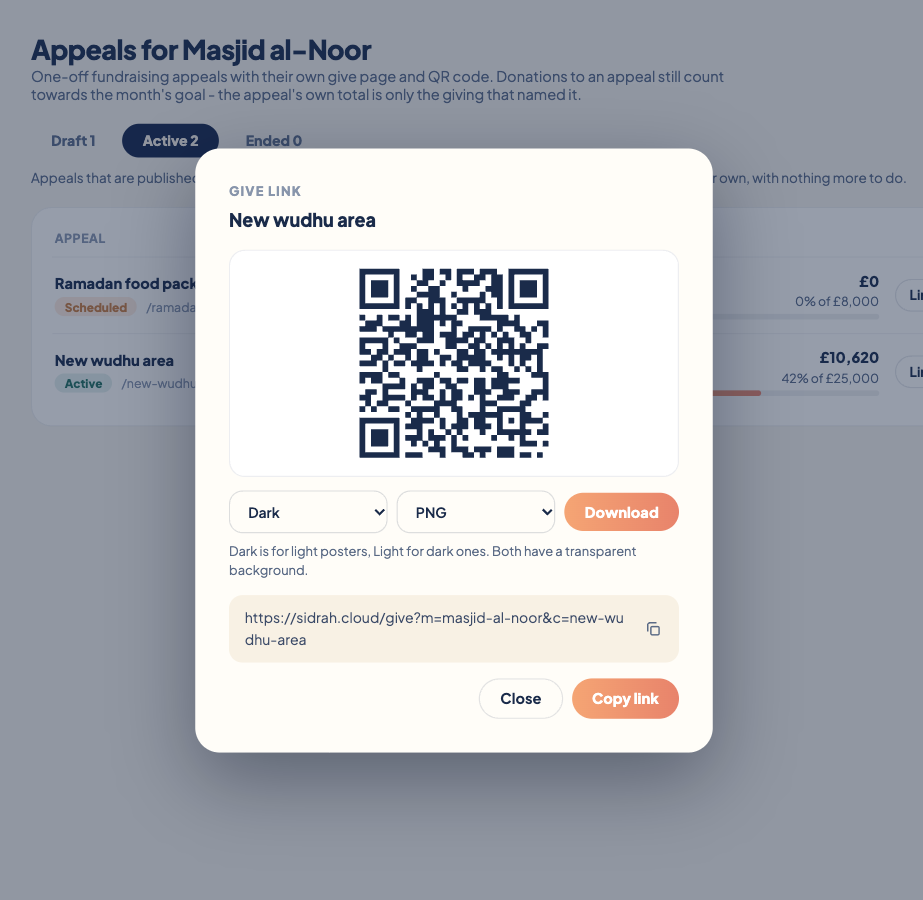
Press Link on the appeal's row. The Give link window shows the QR code (a square code people scan with their phone camera) and the web address.
- To copy the address, press the copy icon in the link box, or press Copy link. The box shows "Link copied".
- To save the QR code, choose a Colour and a Format, then press Download.
Choose Dark for a light poster and Light for a dark one. Both have a see-through background. PNG suits most uses. Choose SVG if your designer asks for it.
A draft appeal's link does not work yet. Publish it before the posters go up.
Check it worked #
Scan the QR code with your phone. Your give page opens with the appeal's title, blurb, image and progress in place of the monthly goal. After the appeal ends, the same link says "This appeal has ended - you can still give to the masjid below."
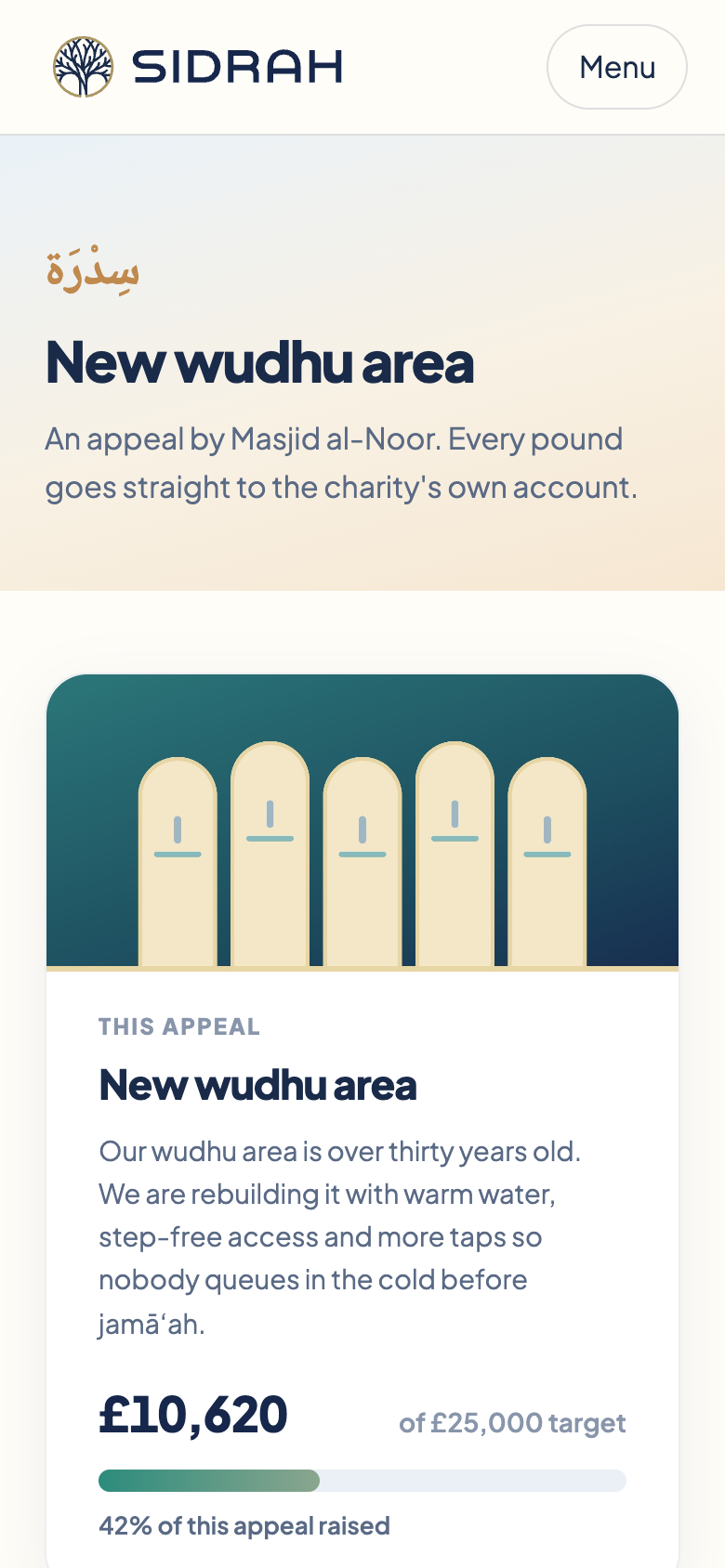
Running appeals also show:
- On your masjid's page in the Sidrah app, under Campaigns.
- On screens with the Appeal progress and Appeal QR (scan to give) zones, or the Appeal board layout. These zones stay blank when no appeal is running. See Design your screen layout.
- Under Giving, then Reports, where the Appeal filter lists each appeal's gifts.