
There is nothing to switch on. Every give page works this way. To see the donation lists in steps 5 and 6 you need the organisation's Owner or Finance role.
These details belong to your charity. The give page tells donors they go only to the masjid's charity, for its donation records and Gift Aid. Looking after them is your charity's responsibility, so cover them in your privacy notice.
See what a donor is asked for #
On your give page, a donor picks an amount in your organisation's currency. If they are giving to an appeal that accepts more than one kind of giving, they must also answer What kind of giving is this?, for example Zakah or Sadaqah.
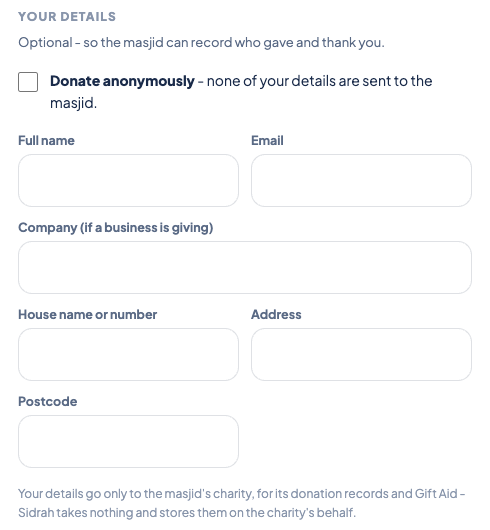
Then comes Your details, with the line "Optional - so the masjid can record who gave and thank you". The fields are Full name, Email, Company (if a business is giving), House name or number, Address and Postcode. All of them are optional.
A masjid that takes donations through Paystack shows Email for your receipt instead of Email. That one is required, because the payment page sends the receipt there.
Understand Donate anonymously #
Above the fields is a tick box, Donate anonymously, with the line "none of your details are sent to the masjid". Ticking it hides the fields. The gift reaches your list as an amount with no name.
Anonymous hides the donor from the masjid only. The donor still sees their own gift. At a Paystack masjid the receipt email is still needed, but the masjid does not see it.
Know why anonymous and Gift Aid do not mix #
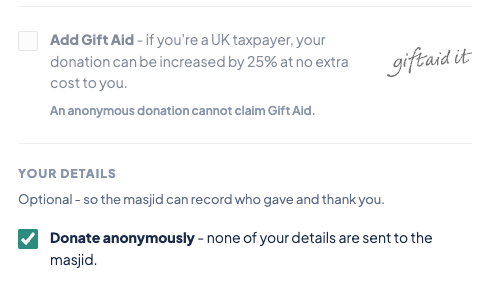
Gift Aid only shows for a UK organisation with a charity number. A Gift Aid declaration is a claim to HMRC for a named taxpayer, so it cannot be anonymous. Ticking one box greys out the other, with a line that says why:
- With Donate anonymously ticked: "An anonymous donation cannot claim Gift Aid."
- With Add Gift Aid ticked: "Gift Aid needs your details - it cannot be anonymous."
See what Gift Aid changes #
When a donor ticks Add Gift Aid:
- Full name, house name or number, and postcode become required.
- The company field is removed, because Gift Aid is for personal gifts only.
- The HMRC declaration wording appears.
Email and address stay optional. If the donor unticks Gift Aid, what they typed is kept.
Read the Donor column #
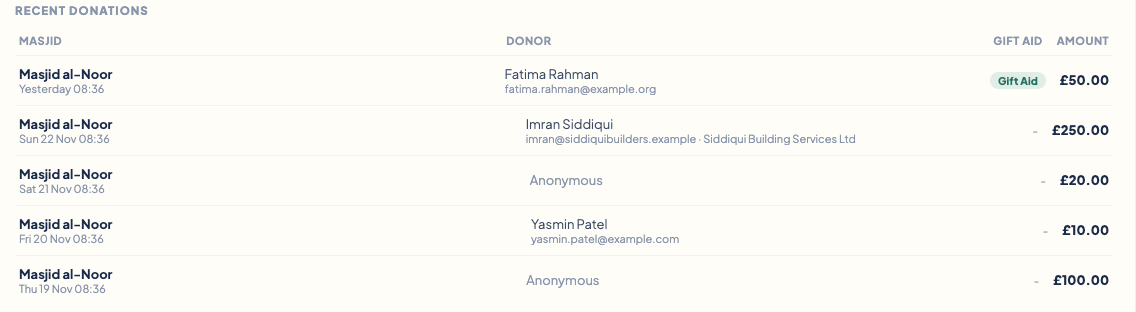
Open Giving, then Masjid, and look at the Donor column in Donations. Each row shows the donor's name, with their email and company in grey underneath.
- A grey Anonymous means the donor ticked the box, or no name came with the payment.
- House number, address and postcode are not shown here. They are kept for the Gift Aid schedule.
A wallet such as Apple Pay can pass on a name, email and billing address. These only fill fields the donor left empty, and are never used for an anonymous gift.
Check it worked in Reports #
Open Giving, then Reports. Every gift is listed with its Donor, Appeal and Fund. Press Export CSV ▸ to download it as a spreadsheet file (CSV). Anonymous gifts show no donor there either.
A Gift Aid CSV holds less. It lists only Gift Aid gifts, with first name, last name, house name or number and postcode. See Gift Aid.
Help a donor give monthly #
Monthly giving is set up in the Sidrah phone app, not on your give page. The donor must be signed in to the app. This is what they see:
- To give monthly to one masjid, they open the masjid in the app, tap Support followed by its name, choose Monthly, pick an amount and tap Save this monthly gift.
- To split one monthly amount across several masaajid, they open the Giving tab and tap the Monthly giving card. That opens Adjust your split, where they tap Add masjid. Each masjid needs at least £5 a month.
- The first time, the app asks for a card: Your monthly giving needs a card. Add a card opens a secure payment page in the browser. Monthly gifts are then taken from that card once a month.
- For Gift Aid, they tap Gift Aid it beside a masjid and fill in Your Gift Aid details.
- Each masjid in the split is marked Always (gives every month, goal met or not) or Pass on (if that masjid's goal is met, the money passes to the next masjid on their list).
- If every masjid on their list has met its goal, the Giving tab shows GOAL MET THIS MONTH and asks where that money should go. If they do not choose in the time shown, it goes to the first masjid on their list.
- To change, pause or stop, they open Adjust your split again and tap Pause the split or Cancel the split. Nothing is taken while it is paused. My giving shows where each month's money went, and is where they update their card.
In your Donations list, a monthly gift shows the donor's name only if they added Gift Aid. Otherwise it reads Anonymous. The donor always sees their own monthly giving in the app.